
This feature is available for the following products:

Note: If you are a TM Club Premium or Association user and want to use Premium registration with your Golf Hub Page, Click Here for details.
It is not uncommon for a manager to take registration in another program and then manually upload a roster via spreadsheet. However, there may be cases where you want to allow players to sign up themselves by simply clicking a registration link on the Golf Hub Page. With Golf Hub registration, players will sign up and add themselves to the roster automatically.
If you would like to collect payments (fee) from players onsite (offline) or online during registration, please read this article thoroughly on setting up registration. If you plan on collecting payment during registration, Click Here to read the article about setting up the payment system.
In this article, we will discuss:
Registration setup
Enable Entry Fee
Payment (i.e., online or offline)
Enabling registration
Disabling registration
Editing registration
Registration reports
Registration Setup
Before setting up your registration form, you must first create your Golf Hub Page. For details on building your Golf Hub Page, Click Here.
Once you have created your Golf Hub Page, you can start setting up your Golf Hub registration. To do this, follow these directions:
Navigate to Apps > Add Registration (as shown below). Note: For TM Club, you're taken to registration setup automatically after you click "Save & Continue" on the Golf Hub Page.

Fill in the following:
Player Limit: Set a maximum number of players that can register.
Golfers allowed per registration: Select the number of possible registrants per registration. For example, for a two-person team event requiring both players to register simultaneously, only check the two. If you have a scramble that allows singles and pairs to register, click one and two.
Registration Closing Date: Select the date and time when registration will close.
Player Permissions: Turn on any of the following to let golfers manage their own registration while registration is open. All three toggles are off by default (as shown below).
Allow a player to edit: Players can change their own registration details until the closing date.
Allow a player to cancel: Players can withdraw their own registration until the closing date. This toggle only appears when "Allow a player to edit" is on.
Auto refund: Cancelled registrations are refunded to the original payment method automatically. This toggle only appears when "Allow a player to cancel" is on.

For details on what golfers can edit or cancel, Click Here.
Click "Save." For TM Club, you're prompted to select one of the following (as shown below):
Publish Later: Saves your setup and keeps the Golf Hub Page unpublished.
Publish & Open Registration: Publishes the Golf Hub Page and opens registration.

Note: For TM Club, if you aren't ready to set up registration, click "Skip Registration," then select "Publish" or "Publish Later."
If you are taking registration with payment, follow the additional details below.
Enable Entry Fee
If you are collecting a fee for the event, you can define those and add them to your Golf Hub Page. Follow these directions to set entry fees:
Complete the steps outlined in the Registration Setup section above.
Next to "Registration Options," click the "Plus" symbol.
In the pop-up, set the following:
Name: Name of the Registration Option.
Registrations: Set the permissible number of golfers per the registration option. Note: If you allow multiple golfers per registration, you must set a registration payment for each option. For example, if you allow registration in teams of two and four, you will need two registration options.
Price: Set the Registration amount for the team size of the registration option.
Description (Optional): Display a short description of the registration option in Golf Hub.

Click "Save" and the registration option will be added (as shown below).

If you need additional registration options, repeat the previous step. Note: If you are allowing golfers to register in multiple team sizes (e.g., 1 Player, 2 Players, etc.), you need to create a registration option for each team size.
Add optional add-ons (e.g., skins, mulligans, lunch, etc.). Next to Add-ons, click the "Plus" symbol. In the pop-up, set the following:
Name: Name of the Add-on option.
Price: Price of the Add-on option.
Description (Optional): Display a short description of the Add-on option.

Click "Save" and the add-on option will be added (as shown below).

If you need additional Add-on options, repeat the previous step.
Payment
Once your entry fee options are set, select how you'll collect payment (as shown below).

To complete the Payment section, fill out the following:
Method: Select "Online" or "Offline":
Online: Accept credit card payments via Stripe. Click "Connect Stripe Account" to link an existing Stripe account or set one up. Once connected, the account appears in the Connected Account dropdown — click the blue "S" to open that account's Stripe dashboard, or click "Connect a Different Stripe Account" to switch to another account (as shown below). For full details on creating and connecting a Stripe account, Click Here.

Offline: Enter an Offline Payment Message to let registrants know how payment will be handled (e.g., "Payment will be handled offline"). This message is shown to players after they register (as shown below).

Review the registration setup, then click "Save" when complete. For TM Club, you'll see the publish prompt described in the Registration Setup section above.
To view your registration report, navigate to Apps > Registration Report. For complete details of the registration report, Click Here.
Enable Registration
Registration can be enabled at any time for the event/league, regardless of the published status of the Golf Hub Page. To enable registration, navigate to Apps > Registration and click the toggle to show "Open" (as shown below).
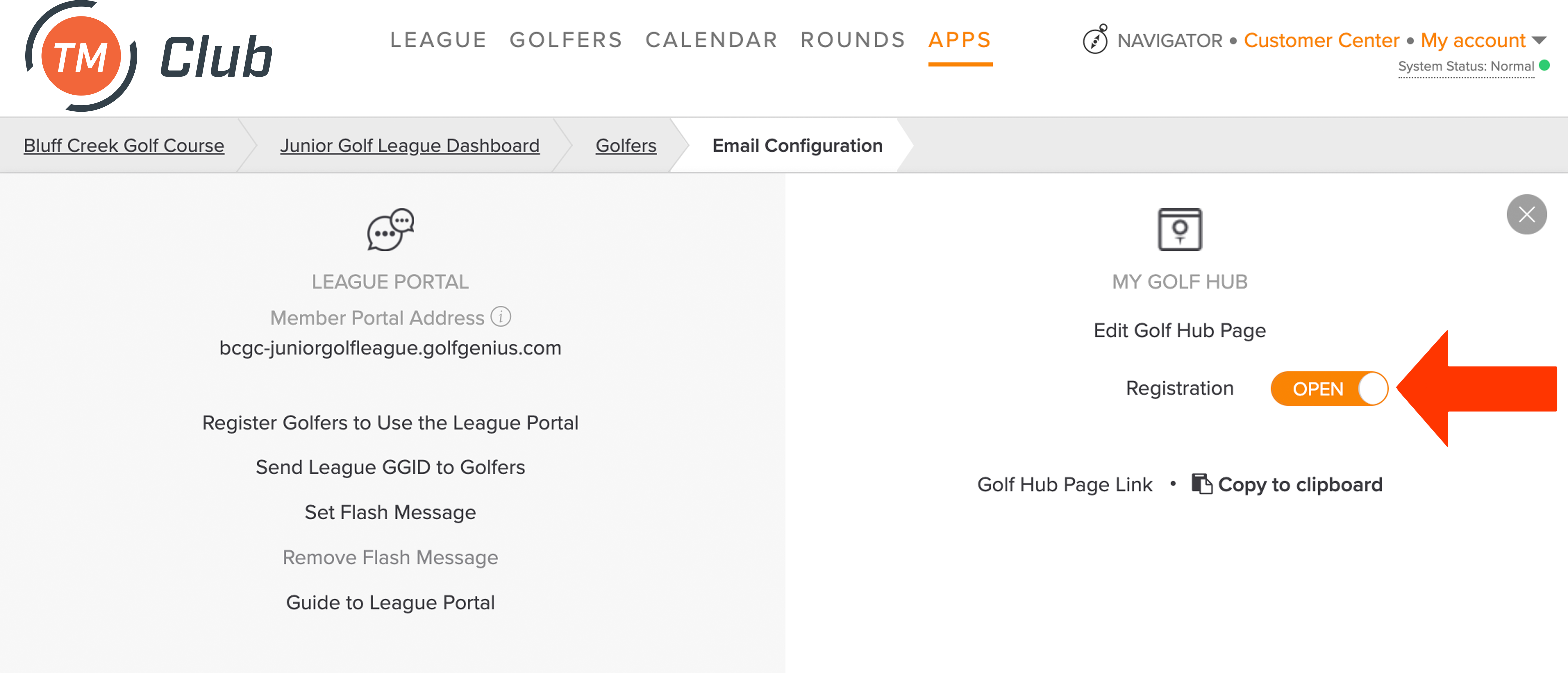
Registration can also be enabled from the Registration Setup page, or, for TM Club, by selecting "Publish & Open Registration" when you save the registration setup.

Disabling Registration
When setting up registration and using a registration close date, registration will automatically be disabled on that day and time. If you need to disable registration manually for any reason, navigate to Apps > Registration and click the toggle so it shows "Closed" (as shown below).
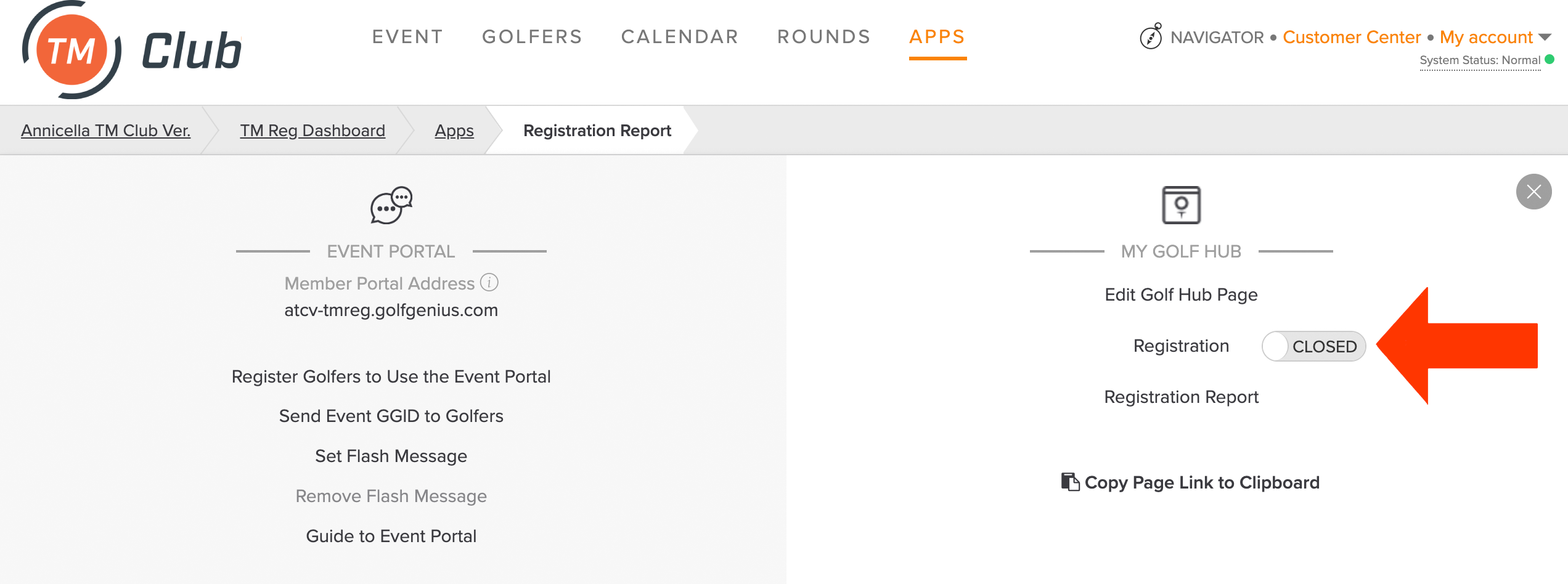
Registration can also be disabled from the Registration Setup page.
Editing Registration
If you need to edit your registration for any reason, you can do so at any time by navigating to Apps > Registration. Make the edits and click "Save."
Registration Reports
If you are collecting a fee with your Golf Hub registration, you can view a registration report that includes who has registered, add-ons, additional players (multi-player registration), and more. To view the registration report, navigate to Apps > Registration Report. For complete details about registration reports, Click Here.