This feature is available for the following products:

Note: This article covers Golf Hub in Golf Genius TM. If you use Golf Genius Golf Hub (the standalone product), Click Here for the Golf Genius Golf Hub version of this article.
Stripe is a credit card processing company many of our customers use to collect payments online. Before collecting payments, you must first create a Stripe account and connect it to your event/league's Golf Hub registration. In this article, we will discuss how to do this.
Note: Stripe charges a small fee per transaction. Visit www.stripe.com to see their current pricing.
Creating and Connecting a Stripe Account
There are typically two different scenarios when it comes to connecting Stripe accounts:
Use Your Stripe Account: Payments will go through your Stripe account and the bank account you have entered. This option is recommended if you want the payments to go to your checking account.
Use Another Stripe Account: Payments will not go through you. You will be "hands-off" when collecting and dealing with the payments. We suggest this approach when a club has a company outing and wants the payments to go directly to the company. The individual/company will need to go to www.stripe.com and create an account.
To create and connect a Stripe account, follow these directions:
Go to an event or league where you want to collect registration payments with Golf Hub. Go to Apps > Add Registration. Note: For TM Club, you'll also land on registration setup after clicking "Save & Continue" on the Golf Hub Page.
Add the entry fee details. For more details about setting up registration, Click Here.
Under "Method," select "Online."
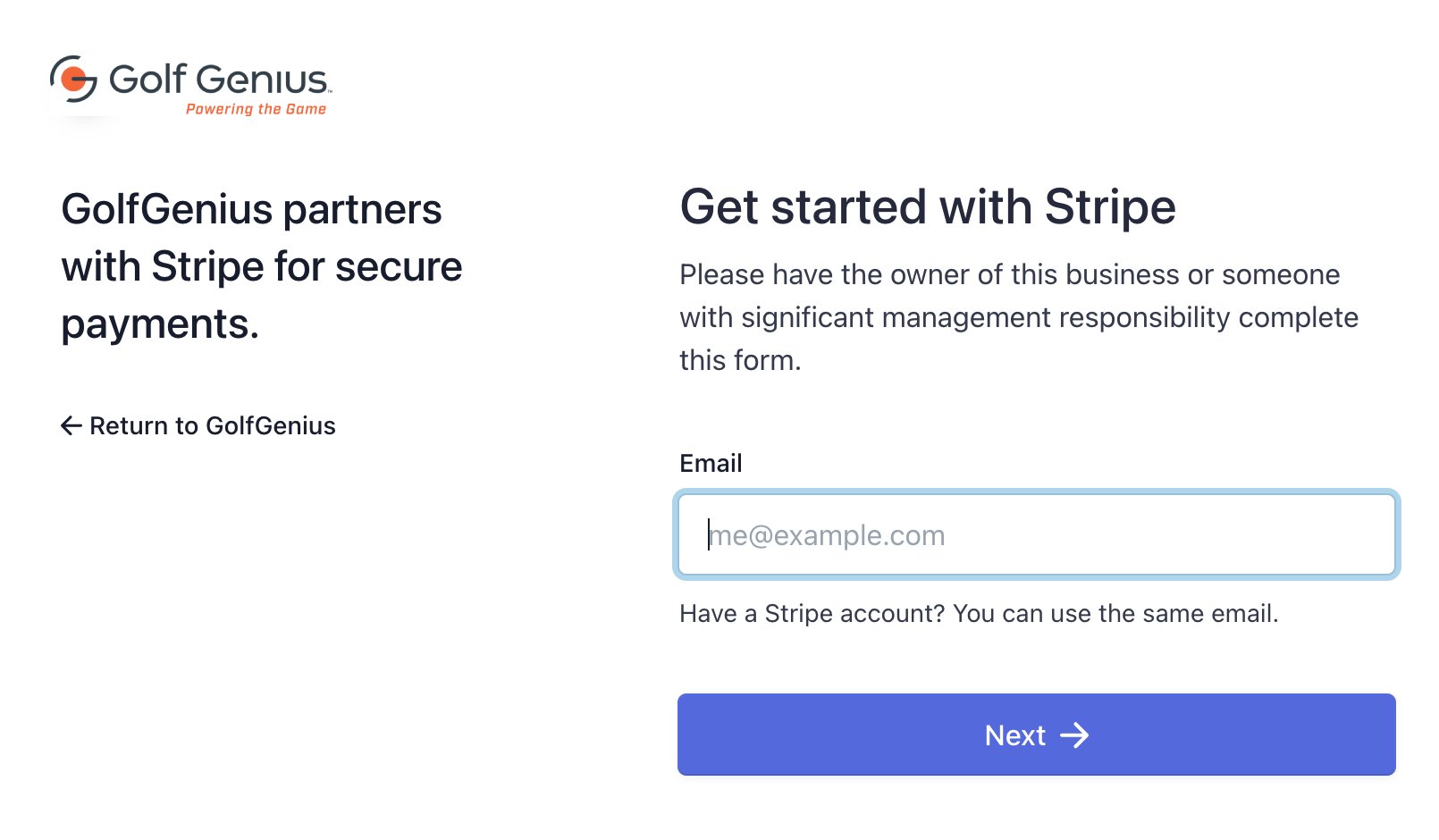
Click "Connect Stripe Account." You will then be directed to Stripe's login/registration page (as shown below).

You can do one of the following:
Create a New Account: Complete account setup. This will require an email, password, and mobile phone number. You should have your bank routing and account number ready, as well as your business EIN (if available). If you are operating as an individual, entering your SSN is an option, but omitting it may cause delays in transferring collected funds to your bank account.
Use an Active Stripe Account: Enter your existing email and click "Next." You will be asked for a password and the account you would like to use associated with that email.
After registering an account or signing in, you will be redirected back to the Golf Hub registration page, and the Stripe account will be connected. The name of the connected Stripe account will be listed (as shown below). If multiple Stripe accounts are connected, use the Connected Account drop-down to select the proper account.

To add a new Stripe account, click "Connect a Different Stripe Account." To open the connected account's Stripe dashboard, click the blue "S."