
This feature is only available with the following products:

(Note: If you would like this feature enabled, please reach out to our support team.)
The Credit Balance feature allows users to maintain a virtual balance within Golf Genius Tournament Management. Players can then use this virtual balance to register for events/leagues with payments and membership programs. Customer Managers can refund registration payments as credits without initiating bank transfers to players, and they can manually add credits to the customer's credit balance in the customer center.
There are some limitations when using the Credit Balance, as players cannot apply it to registration for multiple events. Additionally, the Credit Balance cannot be used for donations, when add-ons are included in a registration, or across customer accounts (The account that issued the credit is the only account the credit can be used in.).
In this article, we will discuss how to manage the Credit Balance and how players use it.
Overview
The goal of the Credit Balance is to provide easy management of refunds for event registration to golfers as credits while allowing golfers to review and utilize their credits while registering for events/leagues. To use the Credit Balance, the following conditions must be met:
Credit Balance Feature Enablement (please contact support to have this feature enabled, if not already)
Master Roster Registration or SSO enabled
Credit Card Payments enabled (please contact support to have this feature enabled, if not already)
Accessing the Credit Balance
To access your Credit Balance from the Customer Center, go to Payment Center > Credit Balance (as shown below). You can review the table in the Credit Balance for all players who have had and currently have an available credit balance.
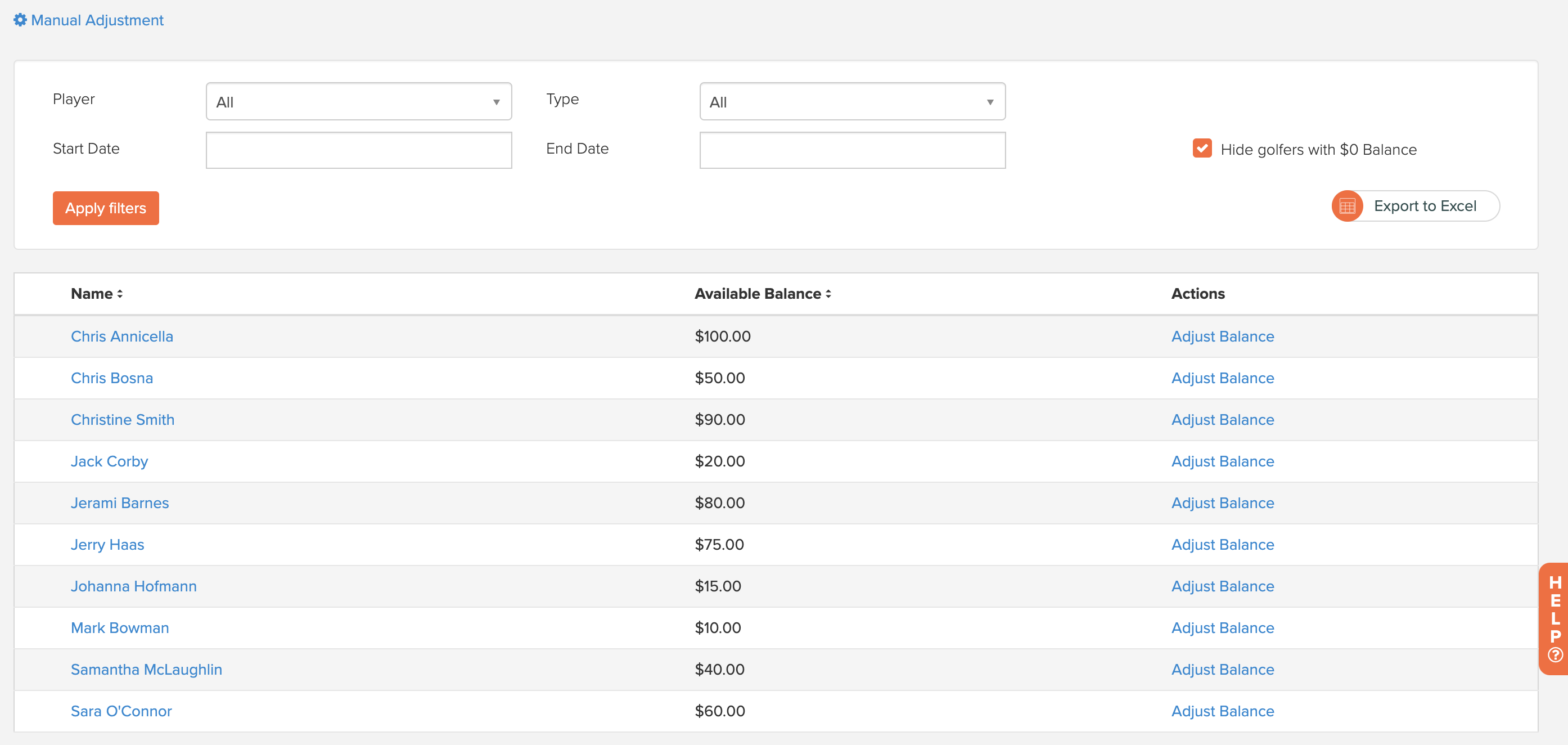
In the Credit Balance center, you can do the following:
Filter Players
Export the credit balance, based on filters, to a .xlsx file.
Manual Adjustment (Add/Remove Credit)
Each of these will be discussed in greater detail later in this article.
By clicking a player's name in the Credit Balance center, the player's Credit Balance log will be displayed, showing all available transactions that affected the player's balance (as shown below).
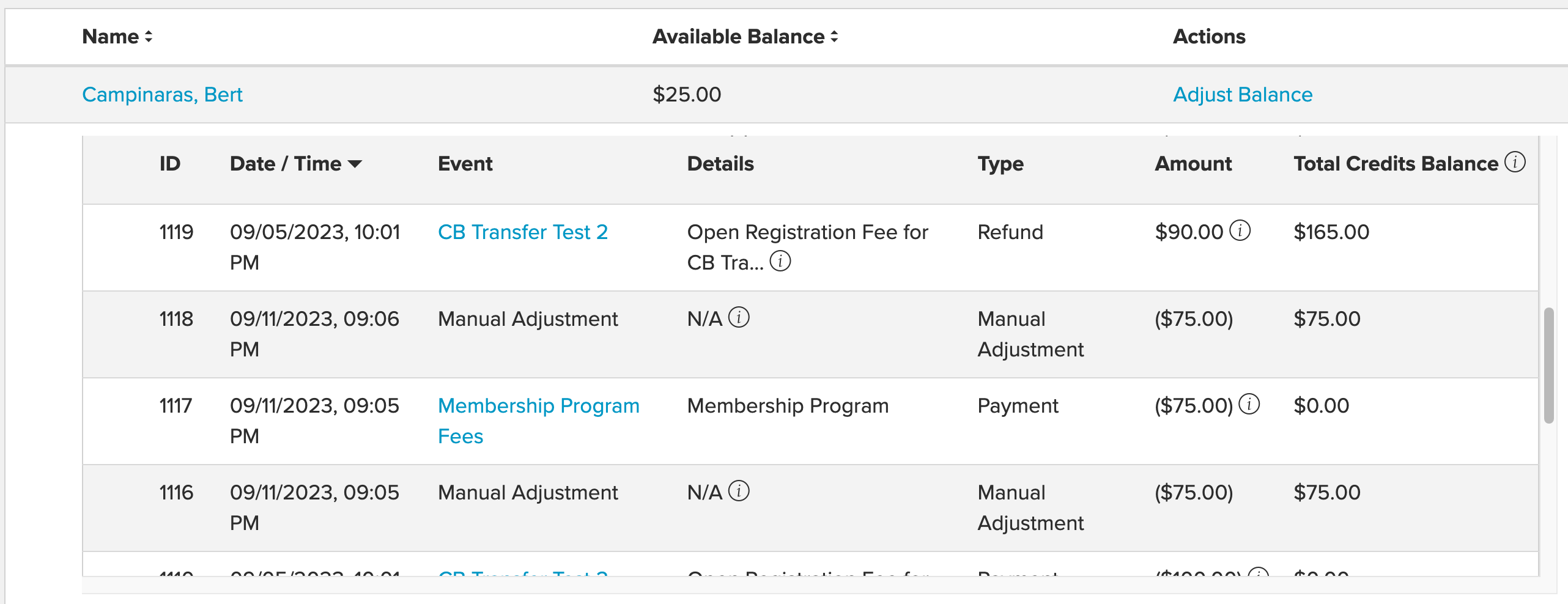
The log is made up of the following transaction types:
Payment: A Payment Log records instances when a golfer pays an entry fee for an event using their credits. It reflects the golfer's utilization of their Credit Balance to cover event expenses, providing a clear history of these transactions, including event details, payment amounts, and transaction dates.
Add Credit to Balance: An Add Credit to Balance log records instances when a golfer adds funds to their Credit Balance via the Player Dashboard. It reflects the amount credited to the balance, the total amount charged, and the date of the transaction.
Refund: A Refund Log documents situations in which a golfer receives credits to their Credit Balance. This typically occurs due to event cancellations, event transfers, or when a manager cancels the golfer's participation in an event. The Refund Log displays details about the credited event, the refunded credit amount, and the refund date.
Manual Adjustment: A Manual Adjustment Log records instances in which a manager manually adds or deducts credits from a golfer's Credit Balance. This can be done to rectify errors, make adjustments, or apply special considerations. The Manual Adjustment Log provides a transparent record of these adjustments, including event references, adjustment amounts, and the date when the manager applied the adjustment.
Filter Players
When viewing your Credit Balance, you can narrow your player list using the player filter feature (as shown below). After selecting your filters, click "Apply filters," and the player list and player audit logs will be narrowed to match the defined filters.

When using the filter, you will have several options to filter players based on:
Player: Filter the list to a specific player.
Type: Filter a player's audit log by transaction type that can impact a credit balance (e.g., Manual Adjustment, Payment, Refund, Add Credit to Balance). When you click a specific player, you can see all transaction types.
Player Tour: If using the Tour Management feature, narrow the player list to a specific tour.
Start/End Date: Filter a player's audit log based on date
Hide golfers with $0 Balance: Any golfer with a $0 credit balance will not be displayed in the player list.
Credit Balance Report (Export to Excel)
If you would like to generate a report of your Credit Balance, you can export it to Excel. To generate a report, click "Export to Excel." The data will be exported based on the filter set (as shown below).
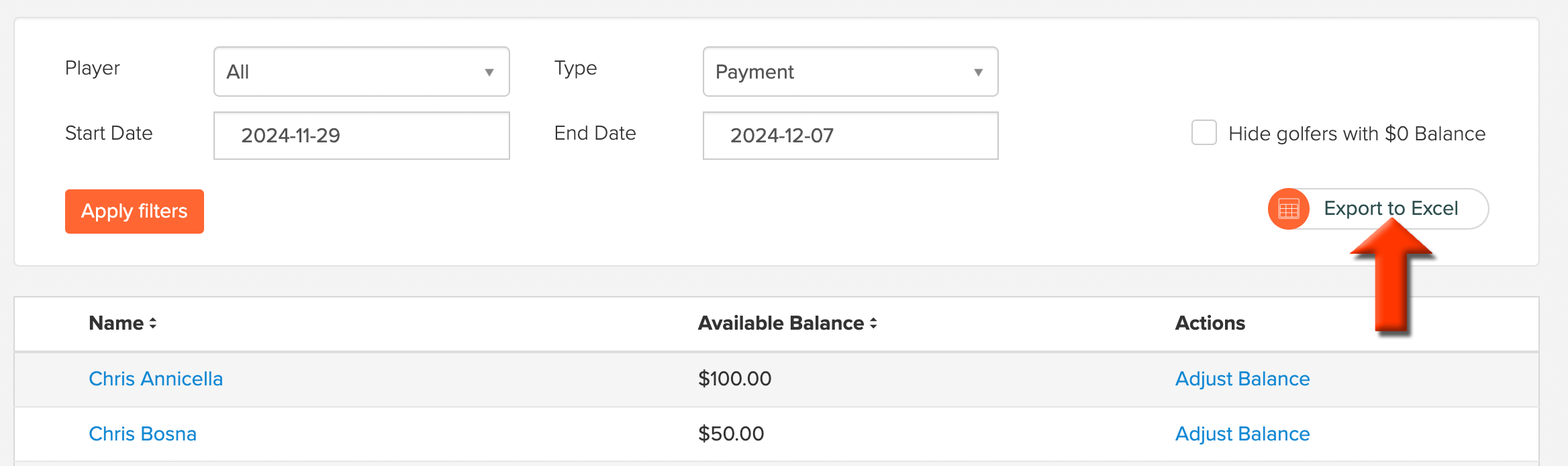
The Excel file generated will have multiple sheets that provide a structured overview of Credit Balance data, allowing for easy access and analysis of golfer balances, payments, refunds, manual adjustments, credit balance top ups, and summary statistics. The following tabs are available, and the data contained in each tab are outlined below:
Balances Tab:
Name: The golfer's or customer's name.
Available Balance: The current credit balance available to each golfer.
Credit Balance Payments Tab:
Event: The name of the event associated with the payment.
Player: The golfer making the payment.
Description: A brief payment description.
Date and Time: The date and time of the payment.
Amount: The payment amount.
Status: Payment status (e.g., completed).
Credit Entry Id: An identifier for the credit entry.
Credit Balance Refunds Tab:
Event: The event related to the refund.
Player: The golfer receiving the refund.
Description: A brief refund description.
Date and Time: The date and time of the refund.
Amount: The refunded amount.
Status: Refund status (e.g., processed).
Credit Entry Id: An identifier for the credit entry.
Manual Adjustments Tab:
Event: The event or reason for a manual credit adjustment.
Player: The golfer for whom the adjustment is made.
Description: A brief description of the manual adjustment.
Date and Time: The date and time of the adjustment.
Amount: The adjustment amount.
Status: Adjustment status (e.g., applied).
Credit Entry Id: An identifier for the credit entry.
Player Adjusted Balance:
Event: The event or reason for a manual credit adjustment.
Player: The golfer for whom the adjustment is made.
Description: A brief description of the manual adjustment.
Date and Time: The date and time of the adjustment.
Amount: The adjustment amount.
Status: Adjustment status (e.g., applied).
Credit Entry Id: An identifier for the credit entry.
Summary Tab:
Overall Credit Balance Start Balance: Total credits for all golfers, starting from a specified start date.
Credit Balance Payment Total: The sum of payments made using Credit Balance balances.
Manual Adjustments: Total credits manually provided by a manager.
Overall Credit Balance End Balance: Total credits for all golfers up to the current date or an end date set by filters.
Quick Balance Adjustments
Quick Balance adjustments can be made to a player's account balance from the Credit Balance Center. From the player's list, click "Adjust Balance" (as shown below). Fill in the adjustment amount and comment on why the adjustment was made.

Click "Submit," and the adjustment will be made to the player's credit balance, which will be displayed in the player's credit log (as shown below).

Manual Adjustment / Bulk Adjustment (Add/Remove Credit)
Manual adjustments for an individual or multiple individuals can be made in the Credit Balance Center. When making a manual adjustment, you can add more details, such as the event name, to the adjustment, rather than a quick adjustment that automatically sets the event name to "manual adjustment." To make manual adjustments to a player's credit balance, follow these directions:
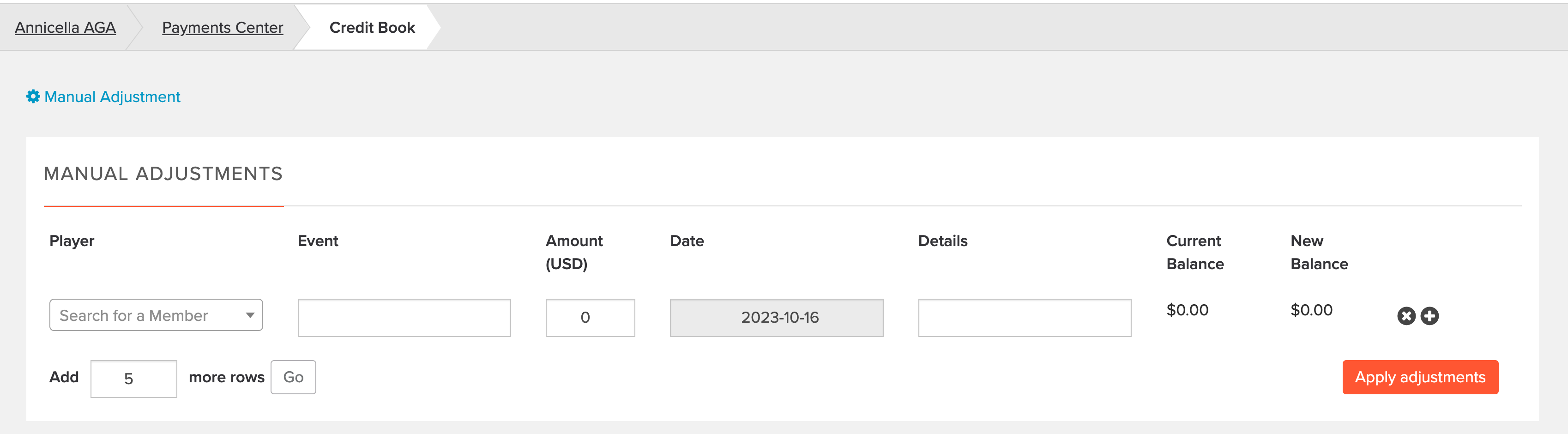
Go to Payments Center > Credit Balance > Manual Adjustment (as shown below).

Select a player from the "Player" dropdown.
Complete the following details:
Event: The name of the event associated with the adjustment.
Amount: The dollar amount of the adjustment.
Date: The date the adjustment should be applied.
Details: A brief description of the adjustment.
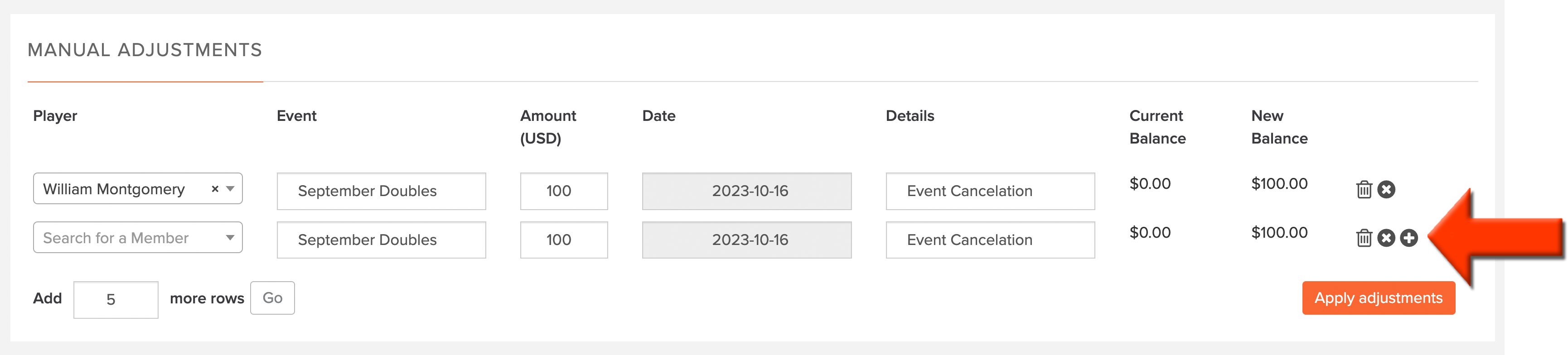
If you are adjusting a couple of players, click the plus symbol next to the last adjustment (as shown below). When clicking this symbol, the event name, amount, date and detail will be carried down to the next row.

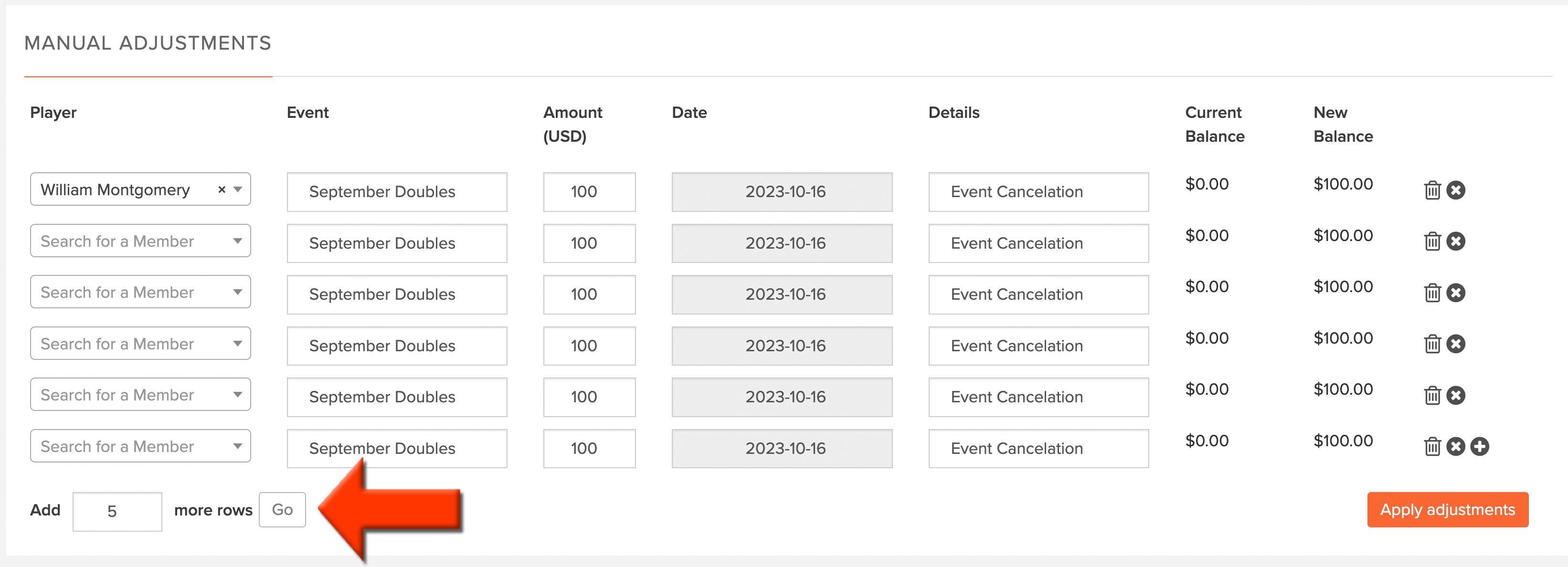
If you are adjusting several players, you can use "Add 'X' more rows" to specify how many additional rows you would like to add, then click "Go" (as shown below). The event name, amount, date, and detail will be carried down to the next row when using the options.

After all players have been added and details filled in, click "Apply Adjustments." The updated credit will be applied to each player, as shown in the player's credit log.
Enabling Credit Balance Top-Up
Note: This feature is only available for customers outside of North America and requires a Stripe account.
The Credit Balance Top-Up feature allows golfers to add funds to their Credit Balance directly from the Player Dashboard portal widget. To enable the top-up feature, follow these directions:
Navigate to Customer Settings > Default Settings > General Settings tab.
Locate the Credit Book section (as shown below).

Check the box to enable the Credit Balance Top-Up feature.
Once enabled, configure the following settings:
Amounts: Set the default credit amounts players can choose when adding funds to their balance. Set up to three preset amounts that golfers can select when adding funds (as shown below).

Notes:
Players will always have the option to enter their own custom amount.
Setting the preset value to 0, will hide that option from the golfer's view. If all three presets are set to 0, only the custom option will be displayed, with a minimum top-up of $10.00 required.
The minimum top-up amount is determined by the lowest configured preset value.
Merchant Account: Select the merchant account used for adding credit to balance. The Add Credit to Balance feature is supported exclusively through Stripe. Please select the Stripe account that will process top-up payments.

Notes:If you have already established a Stripe account within an Event, those options will be displayed. If you have not established a Stripe account, you will be required to connect one.
Once a player has completed a credit top-up transaction, the Stripe account cannot be changed.
Stripe Card Fees: Select how transaction processing fees are handled (as shown below):

Add credit card fee to invoice amount (gross up): The player covers the processing fees. For example, a 50.00 top-up results in a charge of 51.80 to the golfer, with the organization receiving 50.00.
Do not add credit card fee to invoice amount: The club covers the processing fees. For example, a 50.00 top-up results in a charge of 50.00 to the golfer, with the club receiving 48.20.
Click Save to apply the settings.
Refunding Event Registration Fee to Credit Balance
If you have an event/league with a registration fee, that fee can be applied to the Credit Balance if the event is canceled or participation is canceled. To refund an event registration fee to the Credit Balance, follow these directions:
Find the transaction you wish to refund:
Within an event/league: Go to Event/League > Payment Center > Registration Report.
From the Customer Center: Go to Payment Center > Transaction History.
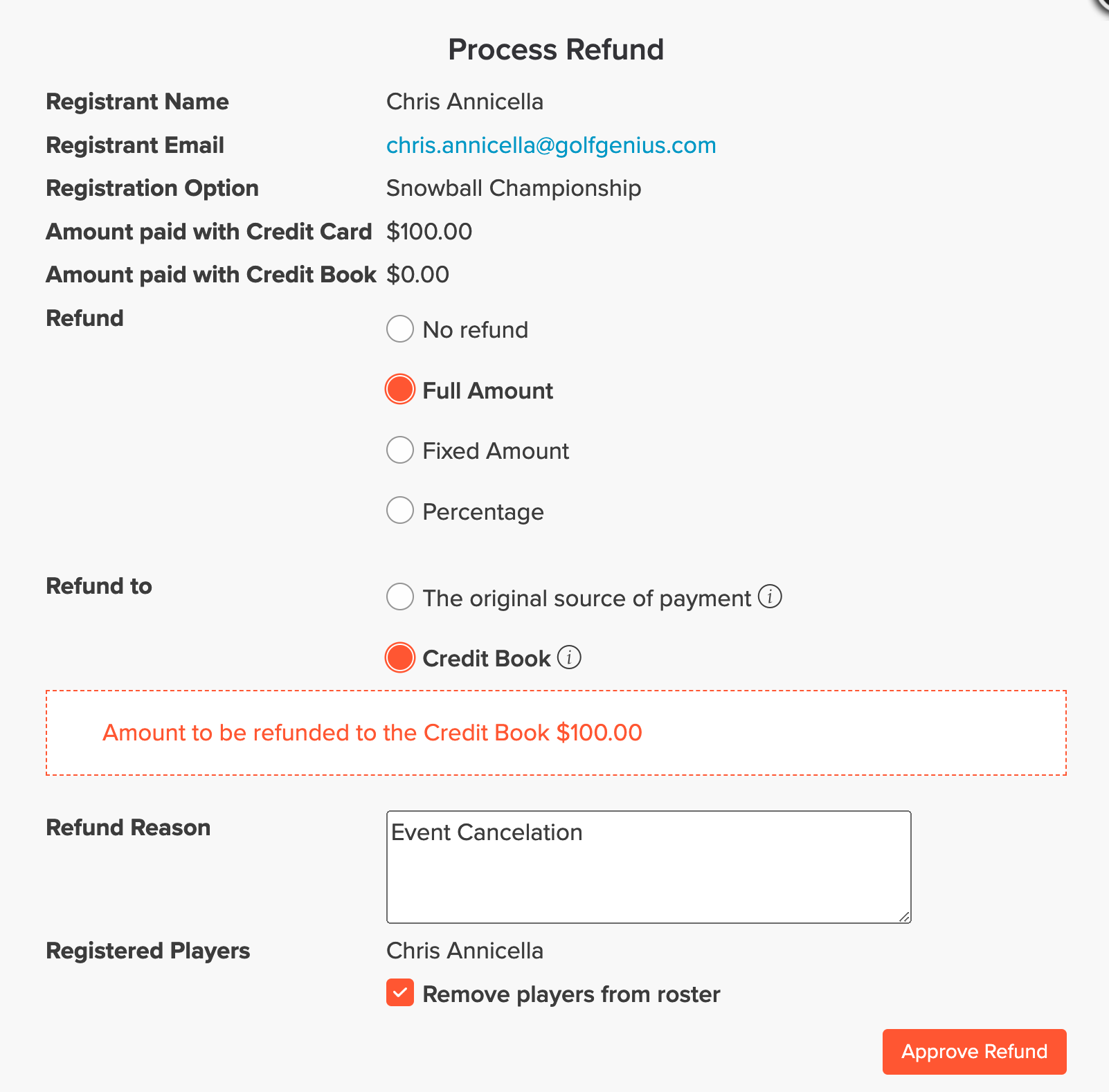
To refund the transaction, click the "Action" dropdown and select "Refund."
Select the amount of the refund.
Set the refund amount to "Credit Balance" (as shown below).

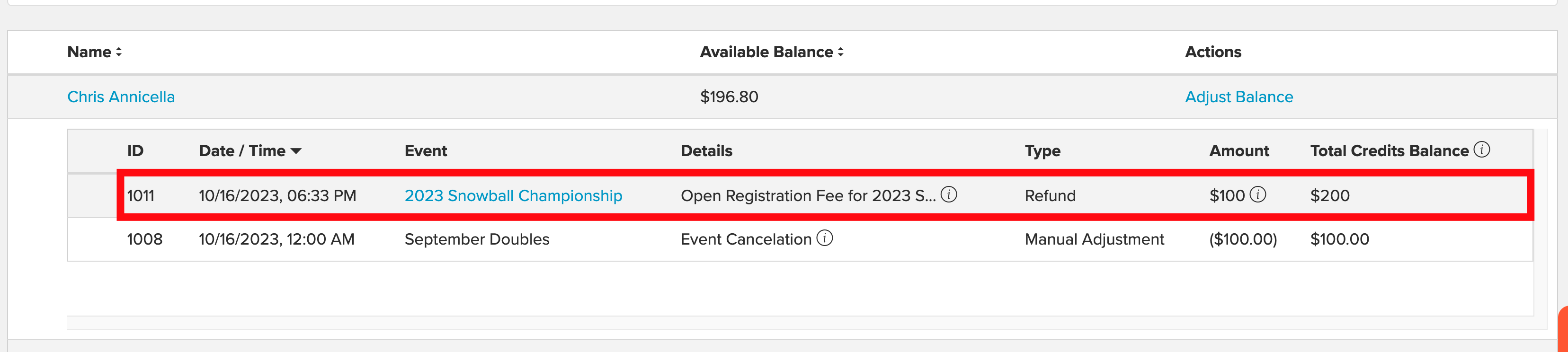
Click "Approve Refund," and the refund amount will be applied to the player's Credit Balance (as shown below).

Transfer Event Registration Fee
If you have an event/league with a registration fee, that fee can be transferred to another event/league. Several scenarios might come into play when using the Credit Balance that is considered when transferring event registration fees from one event to another:
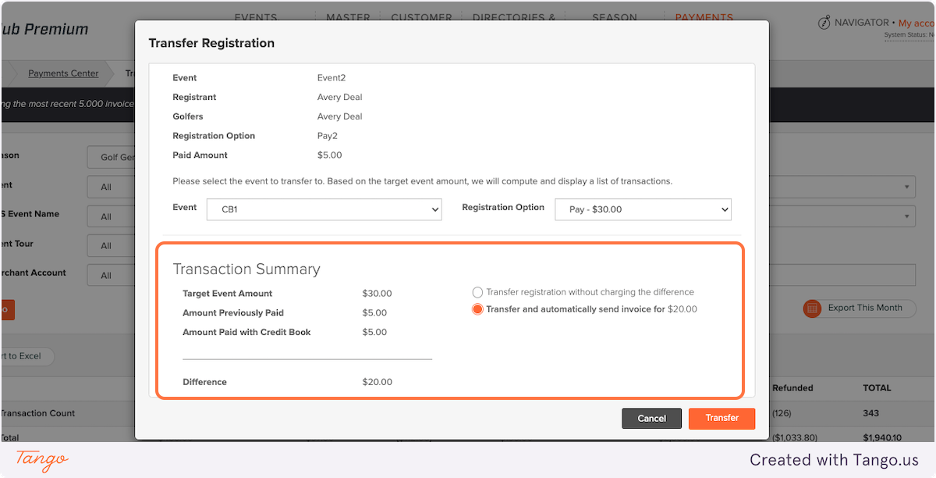
Transfer Registration with Credit Balance and Invoice Payment
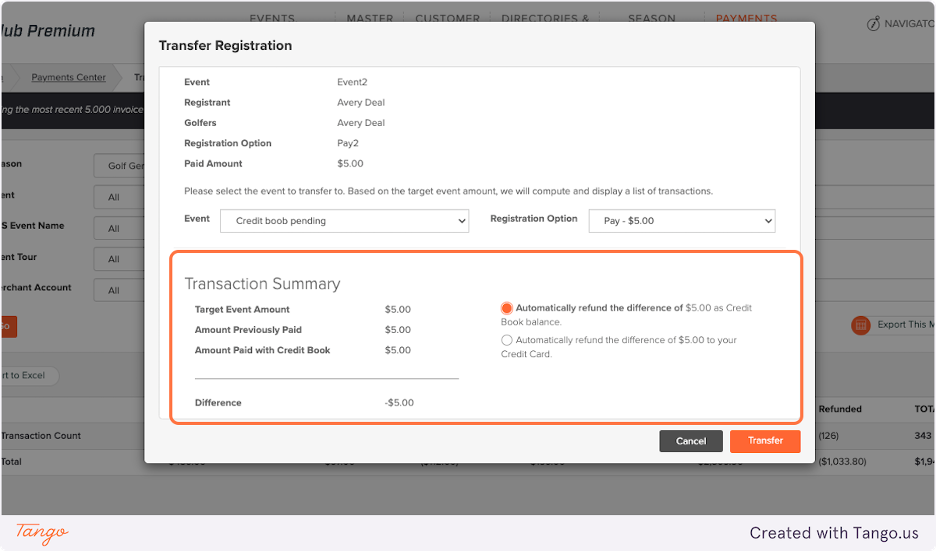
Transfer Registration with Refund to Credit Balance or Credit Card
Transfer Registration with Credit Balance Payment
To transfer an event registration fee, follow these directions:
Find the transaction you wish to transfer:
Within an event/league: Go to Event/League > Payment Center > Registration Report.
From the Customer Center: Go to Payment Center > Transaction History.
For the transaction you need to transfer, click the "Action" dropdown and select "Transfer Registration."
Select the new "Event" and "Registration Option". The Transaction Summary will display the new event amount, the previously paid amount, the amount paid with Credit Balance, and, if needed, the difference in the additional amount that needs to be paid by other means. You will also have additional options to select if payment is required or a credit is required:
Transfer Registration with Payment: Select if you want to invoice the additional amount.

Transfer Registration with Refund: Select how the refund should be applied.

Click "Transfer" to apply the change.
Viewing Players Credit Balance from Master Roster Player Profile
When utilizing the Credit Balance, you can view a player's Credit Balance from their master roster member profile. To view a balance from the profile, follow these directions:
Navigate to Master Roster > View Master Roster.
Select any golfer to open their profile.
Click on the Credit Balance Tab (as shown below) to view their Credit Balance Log and Balance.

Additionally, from this location, you can do the following:
Adjust Balance: Clicking this option opens the Credit Balance Page with a Credit Balance Manual Adjustment pop-up.
Advanced Filtering: When clicked, this option opens the Credit Balance Page with a filter applied to show only this player.
How Players Utilize Credit Balance
When golfers have a Credit balance and register for an event, they may have slightly different experiences on the checkout page based on the following conditions:
Open Registration
Waitlisted or Pending Registration
Open Registration
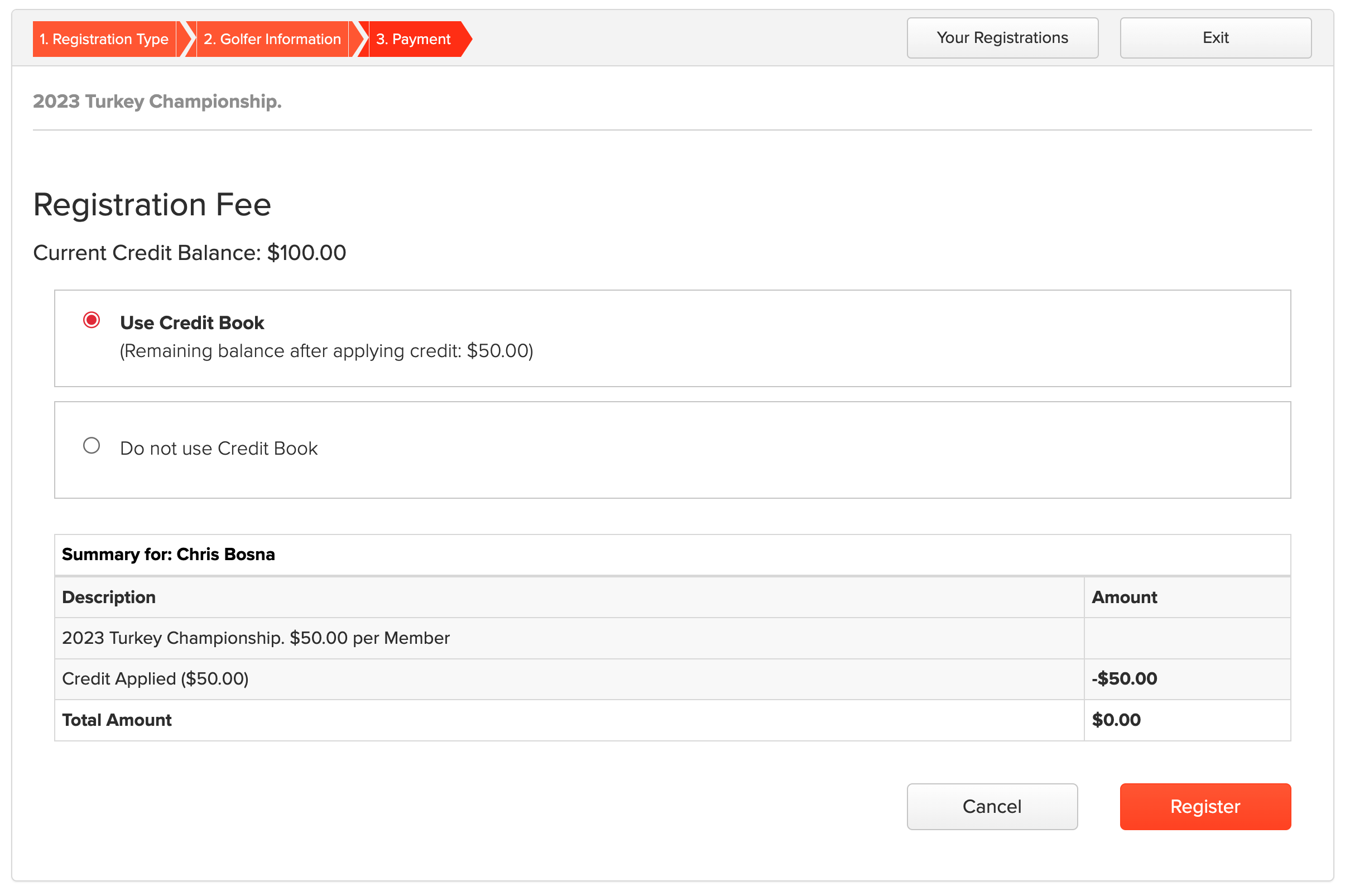
When golfers have a credit balance and register for an open event, they can apply it to the event fee (as shown below).
Waitlisted or Pending Registration
When registering for an event that requires Pending Registration or places players on a Waitlist, they cannot manually select Credit Balance. Instead, the credit balance bubble displays the following notification (as shown below):
"Any Credit Balance you have will be used at the moment of confirmation."
When a manager subsequently confirms the registration, the system will automatically apply any available Credit Balance first, then charge the remaining amount to the provided credit card.

Notes:
Players cannot choose to split payment between credit card and credit balance if they have sufficient funds in the credit balance to cover registration fees.
If a registration includes a paid add-on, they cannot utilize the credit balance.
Payments using the credit balance will be displayed in the player's credit balance transaction history, along with related details (as shown below).
Golfers utilizing their Credit Balance for Waitlisted or Pending registrations are still required to supply a valid credit card. This serves as a secondary payment method to ensure their spot is secured if Credit Balance funds are depleted before acceptance of the registration.


How Players Top Up Their Credit Balance
Note: This feature is only available for customers outside of North America.
When the Credit Balance Top-Up feature is enabled, golfers can add funds to their Credit Balance directly from the Player Dashboard. To top up a Credit Balance, players must follow these directions:
Log in to the Portal using Email and Password. Note: Golfers must log in using Email and Password to access the Add Credit to Balance feature. Logging in via GGID, SSO, or Directory is not supported for this feature.
Navigate to the Player Dashboard Portal Page.
Click the Transactions tab (as shown below).

Select the option "Increase Balance" (as shown below).

Select a preset top-up amount or select Other Amount to enter a custom value.
Enter their billing details and click "Pay" confirm the top-up ammount. If the top-up is successful, the updated balance and a transaction confirmation will be displayed (as shown below).

The golfer will also receive a confirmation email showing their previous and current balance. If the top-up is declined, the golfer will remain on the top-up screen and can attempt the transaction again.
Note:
Successful top-up transactions will appear as an Add Credit to Balance entry in the golfer's Credit Balance log, the Transaction tab of the Player Dashboard, and the Transaction History in the manager center.
If the club supports transaction fees, the golfer will be charged only the selected top-up amount. If the golfer supports transaction fees, the total charge will include the top-up amount plus processing fees, though only the top-up amount will be credited to the balance.
Managing Pending and Waitlisted Registration that Utilizes Credit Balance
When spots open up in an event, managers can move players from the Pending/Waitlist to the Confirmed roster. This section explains how the system handles payments, Credit Balances, and specific scenarios such as split payments and add-ons during this process.
How "Confirm & Charge" Works
When you select a player on the waitlist and choose Confirm & Charge (as shown below), the system automatically calculates how the registration fee should be paid based on the golfer's available balance.
Note: The system always prioritizes Credit Balances. It will use up available credits first before charging the credit card on file.
Three Payment Scenarios
Depending on the golfer's Credit Balance at the moment you confirm them, one of three things will happen:
Credit Card Only: If the golfer has a $0.00 Credit Balance, the full registration fee will be charged to the credit card authorized during registration.
Mixed Payment (Partial Balance): If the golfer has some credits but not enough to cover the full fee, the system will use all available credits first. The remaining balance will then be charged to the credit card.
Credit Balance Only: If the golfer has enough credits to cover the full fee, the system will apply them. The credit card will not be charged (even though a card was required to hold the spot).
Note on Authorizations: We require a credit card to be on file at registration—even if the golfer has enough credits—to ensure payment is secured. However, credits are not "locked" until the moment you confirm the player.
Managing Payment Details
Updating a Credit Card
If a transaction fails (e.g., the card on file is expired or declined), or if a player requests to use a different card, you can update their information.
Look for the Edit Card icon/tooltip next to the player's name (as shown below).

Enter the new card details to retry the transaction.
Handling Add-ons
Please note that Add-ons are excluded from Credit Balance payments. If a registration includes optional add-ons (like merchandise or dinner guests), the system will not apply Credit Balances to these items. Add-ons will always be charged directly to the credit card on file.
Handling Donations
If a registration includes a donation:
During Confirmation: The transaction tooltip will show a breakdown separating the Registration Fee from the Donation amount (as shown below).
After Confirmation: The "Confirmed" tab will only display the Registration Fee details. All donation data is moved to the dedicated Donations page for cleaner reporting.
Group & Split Payments
The system is designed to handle complex group registrations automatically, whether the group paid together or individually.
One Person Paid: If the first registrant paid for the whole group, the system will deduct the correct amounts from that primary payer's balance/card when the group is confirmed.
Everyone Paid Individually: If the group used a "split payment" link, the system tracks each individual's payment method. When moved to confirmed, the correct amounts are deducted from each specific player's Credit Balance or Credit Card.
Club Score Input Terminal Check-In
Note: This option is only available for accounts with the Club Score Input Terminal (CSIT) enabled.
You can choose how payment is collected for an event using the Club Score Input Terminal (CSIT): at Registration, at Check-In, or not at all by selecting No Payment. For complete details, Click Here.