This feature is only available with the following products:

When collecting payment for event/league registration, there are sometimes cases where players need to be refunded. In this article, we will discuss how to issue refunds individually or to an entire event field.
Here are some other applicable articles that you might be interested in when dealing with refunds:
Round Sign-up Refund: For details on refunding round signup payments, Click Here.
Refund Polices: You can establish refund policies for Event/League Registrations with payment. You can utilize a manual refund policy or an automated refund policy.
Transfer Payments: You can also transfer event registration from one event to another.
In this article we will discuss how to manually refund registration payments from the manager center.
Issuing Individual Refunds
To issue an individual payment refund, follow these instructions:
Go to Event/League > Payment Center > Registration Report. All of the payments for the event will be listed.
Find the payment that you'd like to refund, and select "Refund" under the "Actions" dropdown (as shown below).

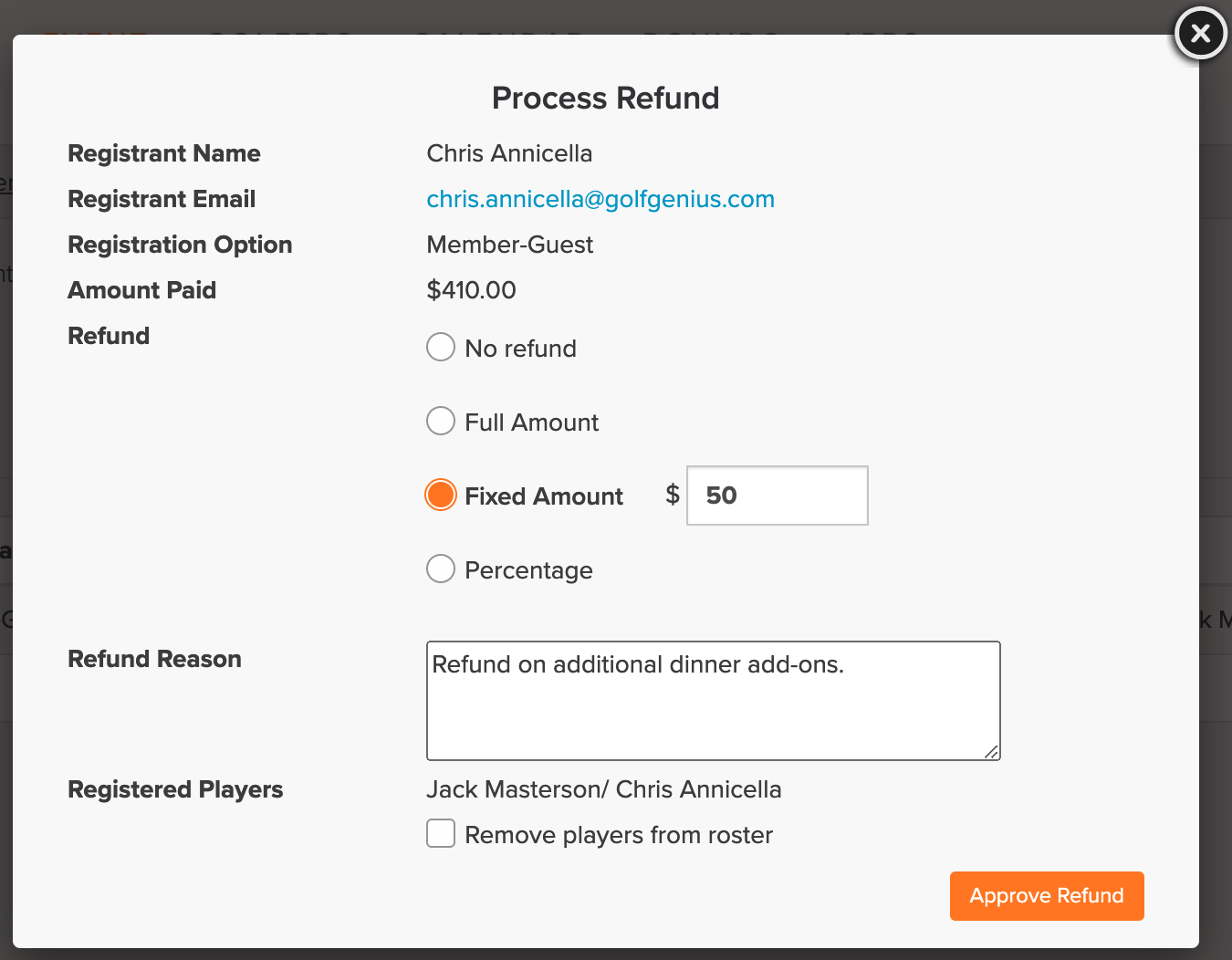
Review and select the refund options (as shown below).

You can refund the full amount, partial amount, or percentage of the amount. You can also apply a refund policy if the refund is for event registration. If selecting a refund policy, the refund amount will be determined by the rules of the policy.
You can also enter a reason for the refund. When hovering over a refunded transaction in the Payment Center, the manager can view who refunded the player and why it was refunded.
You can also remove the players from the roster during the refund process.Click "Approve Refund." The refund will then be processed and an automated email will be sent to the player, confirming the cancellation and refund amount.
Automated Emails:
When refunding registration payment an automated email will be sent. These emails can be viewed, enabled/disabled, and edited, from the Email Configuration page. One of two automated email will be send based refund option selected:
No Refund: If you select the refund option of "No Refund," the "When golfer cancels registration without automatic refund..." email will be used to send an email to the golfer.
Full, Fixed, Percentage: If you select the refund option for Full Amount, Fixed Amount, or Percentage, the When golfer cancels registration with automatic refund..." email will be used to send an email to the golfer.

Review Refunds:
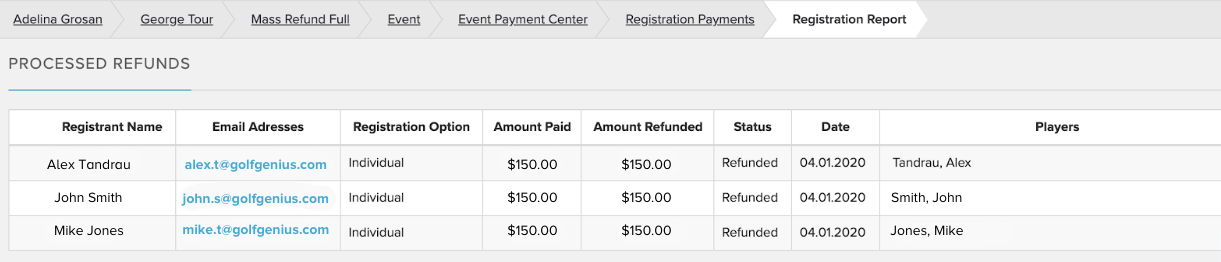
The updated totals will also be reflected in the Payment Center (as shown below).

In addition to issuing individual refunds from the Payment Center (as discussed above), you can also issue individual refunds from your Transaction History. For instructions, Click Here.
Issuing Refunds when using Split Payments:
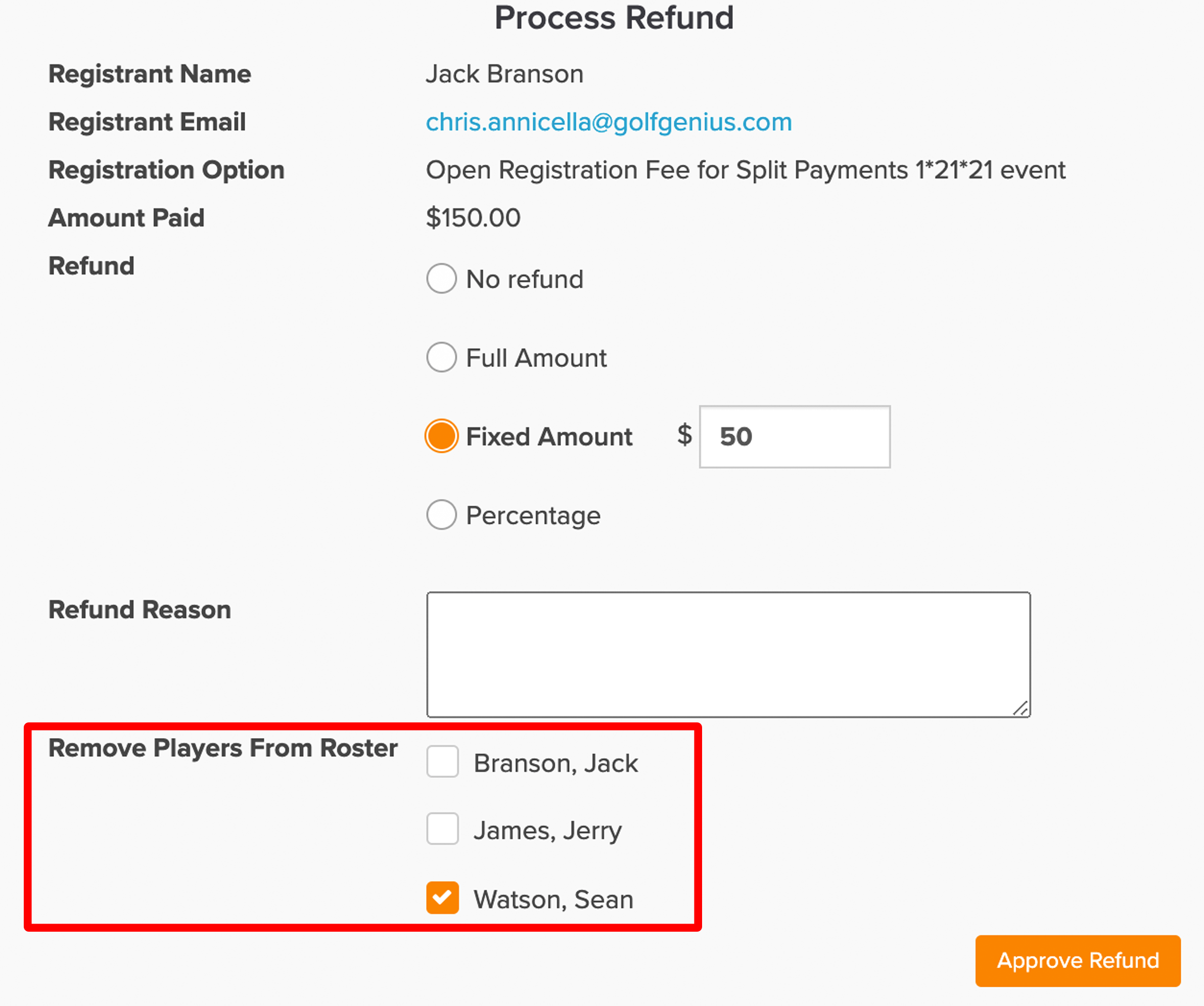
When using split payments, the process of issuing a refund is similar to issuing refunds to an individual. However, you will have an additional option to remove a specific player or multiple players from the roster that were part of the registration (as shown below).
To process a split payment refund, follow these instructions:
Go to Event/League > Payment Center > Registration Report.
Find the team registration you would like to process a refund for and click the action button for "Refund."
You will be presented with the following refund options:
No Refund: No refund will be processed, and the selected player(s) will be removed from the event/league.
Full Amount: A refund will be processed in the full amount of the registration fee, and the selected player(s) will be removed from the event/league.
Fixed Amount: A refund of the defined amount will be processed, and the selected player(s) will be removed from the event/league.
Percentage: A refund will be processed based on a percentage of the registration fee, and the selected player(s) will be removed from the event/league.
Select the player(s) that need to be removed from the roster.
Click "Apporve Refund."
For more details about split payments, Click Here.
Issuing Refunds to the Entire Field:
In some cases, you may have a large field of registered players in the event that has been canceled. Rather than going through the process of issuing refunds individually, you can mass refund the entire field.
To refund the entire event field, follow these instructions:
Go to Event/League > Payment Center > Registrations Report > Refund Entire Event.
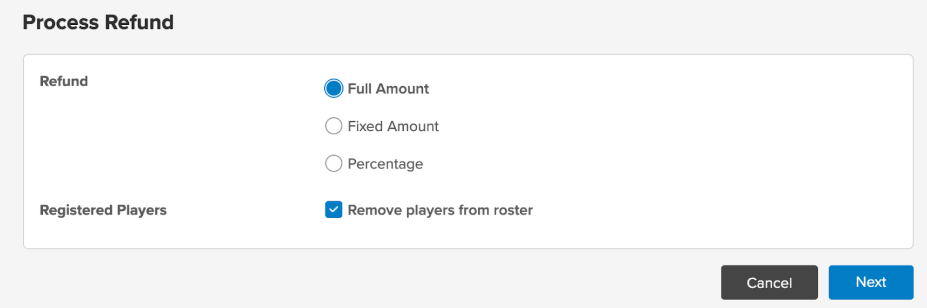
Select to refund the full amount, a fixed amount, percentage of the payment, or apply a refund policy (as shown below).

The selection will apply to all players in the field.
Note 1: If some players have already been partially refunded, an additional amount will be refunded again to meet the full refund amount.
Note 2: If donations were collected during event registration, they would not be refunded.Optionally select to remove the players from the event roster.
Click "Next."
Review the summary screen to ensure the proper mass refund is being applied.
Click "Process Refunds."
The refunds will then start to be processed. Once the process is complete, you can view the summary of refunds (as shown below).