
This feature is available for the following products:

The Registration Center holds the registration settings for an Event/League. These settings apply to Event and League Registration and Event and League Registration with Payments. To open it, navigate to Event/League > Registration Center.
In this article, we will discuss the Registration Center's four tabs:
Registration Enablement
Registration Setup
Registration Dates
Registration Description
Note: The settings in these tabs are also available in the default event registration setup. We suggest setting up your default settings first, which apply to all future events. To access your default event settings, navigate to Customer Center > Directories & Registration > Default Event Registration Setup.
Registration Enablement
This section covers the "Registration Enablement" tab in the Default Event Registration Setup and Registration Center (as shown below).

Registration
When registration is enabled, golfers can register themselves for the Event/League. The following options are available:
Enable Registration: Check this option to let players sign up for the Event/League online with Event and League Registration. It also gives you access to the options below.
This is a Junior Golf Event: If you use Event and League Registration for junior programs, we suggest checking this option. For details, Click Here.
Enable Registration with Credit Card Payments: Collect credit card payments when players register online. For details on taking payments, Click Here.
Player Limit: Limits how many golfers can sign up for the Event/League. For details, Click Here.
Waitlist Limit: If you set a player limit, you can also set a waitlist limit. The waitlist limit stops golfers from joining the waitlist once the limit is reached.
List of Participants
When registration is enabled, you can let golfers see other golfers on the players page in the Portal and the Golf Genius App, based on their registration status. The following options are available:
Include List of Participants in Registration: Adds a button to the Portal registration page that lets golfers view a list of registered golfers.
Golfers on the waitlist: Adds a button to the Portal registration page that lets golfers view the waitlist.
Golfers on the pending registration list: Adds a button to the Portal registration page that lets golfers view a list of pending registrations.
GGID Links
GGID Links give players access to the Event/League Portal. For details, Click Here. Two GGID Links are available:
Member Portal: Logs viewers in and opens the Portal for that Event/League.
Registration: If you use Event and League Registration, this link logs viewers in and opens the registration page for that Event/League.
Registration Setup
This section covers the "Registration Setup" tab in the Default Event Registration Setup and Registration Center (as shown below).
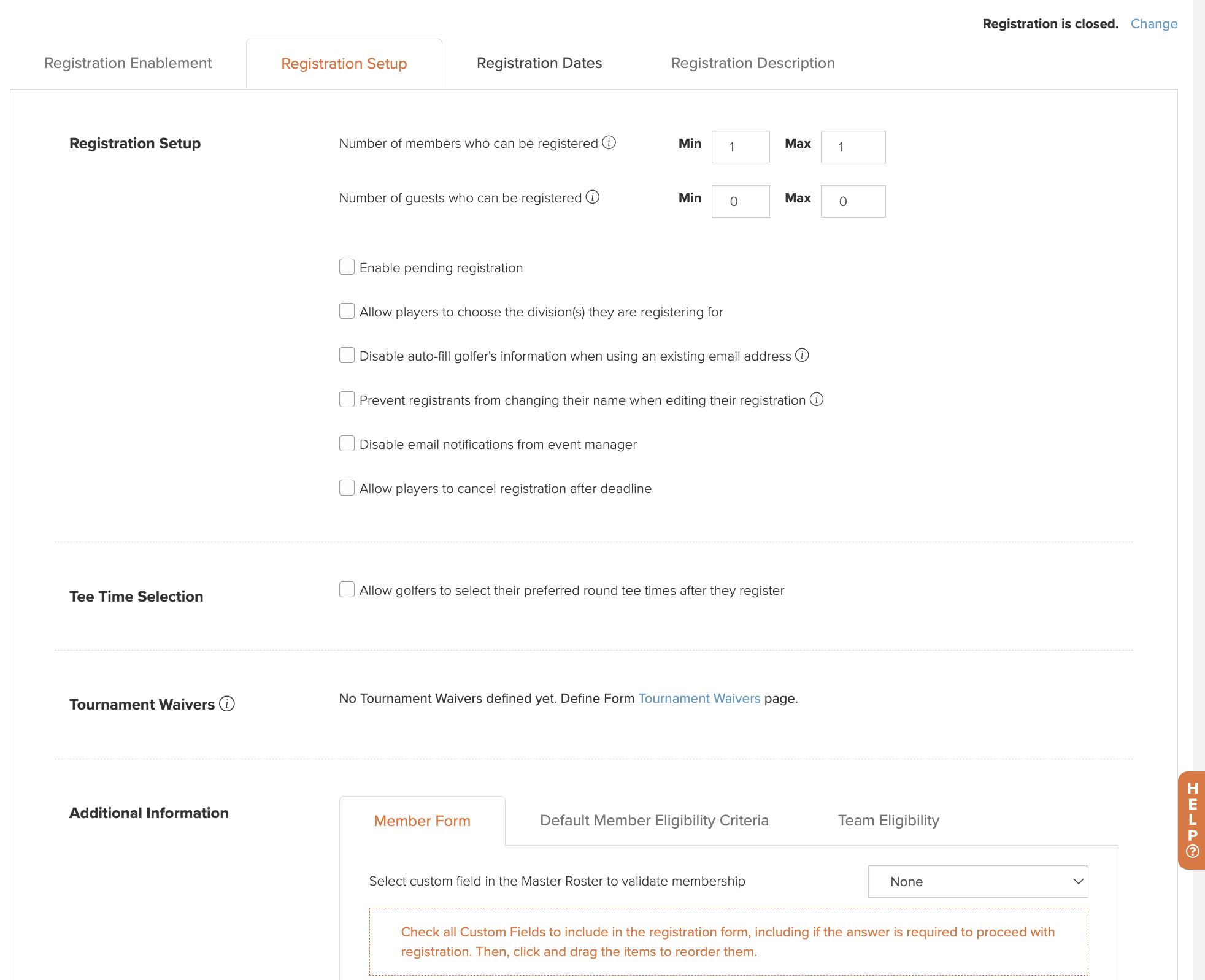
Note: If credit card payments are enabled, this section looks different (as outlined below).
Registration Setup
This section varies depending on whether credit card payments are enabled on the "Registration Enablement" tab.
Without Credit Card Payments Enabled: Select the number of members and guests allowed to register (as shown below).

A member is anyone on your Master Roster. A guest is anyone not on your Master Roster. Example scenarios:
For a public four-person charity scramble where registrants sign up a full foursome, set the minimum and maximum number of members to 0, and the minimum and maximum number of guests to 4.
For a member-guest tournament, set the minimum and maximum to 1 for both members and guests.
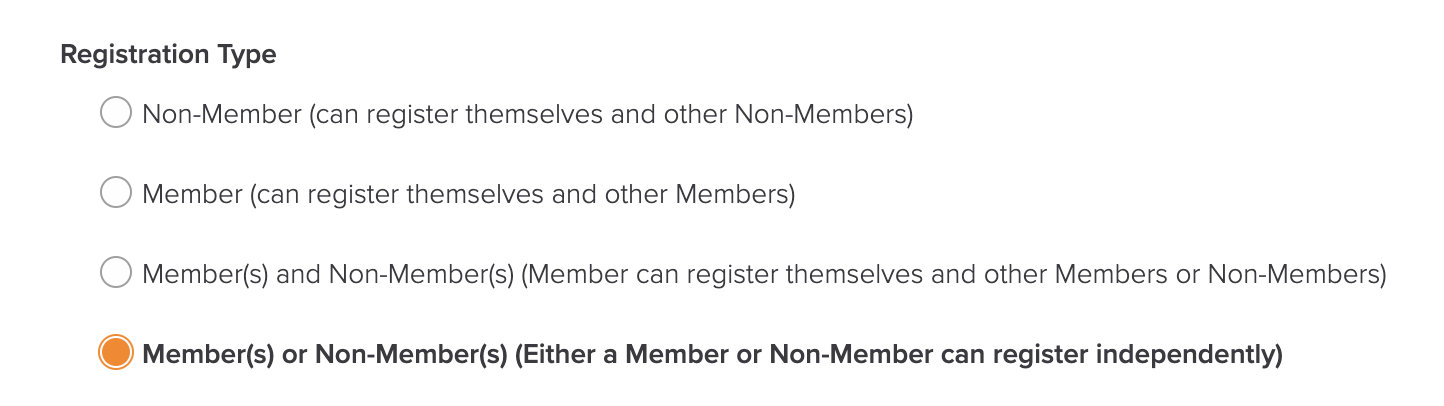
With Credit Card Payments Enabled: If you collect payments during registration, different registration types are available (as shown below).

For details, Click Here.
Depending on your features and setup, the following options may also be available on the "Registration Setup" tab:
Would you like us to move players off the waitlist automatically if there is a cancellation?: If you set a player limit in the Event/League Profile, select this option to move players from the waitlist to confirmed automatically when someone cancels. For details on managing a waitlist, Click Here.
Enable Pending Registration: Select this option if a Manager must approve each registration before the golfer is confirmed and added to the roster. For details, Click Here.
Allow players to choose the division(s) they are playing for: If the Event/League has multiple divisions, select this option to let players choose their division when they register. For details, Click Here.
Disable auto-fill golfer's information when using an existing email address: Stops the golfer's information from filling in automatically when the registration uses an email address that's already in the system.
Prevent Registrants from changing their name when editing their registration (Guests Only): For member-guest or guest-only events, this option stops registrants who return to edit their registration from changing a guest's original personal information. They can still change custom fields. Managers can change this information on the Manager Site if needed.
Disable email notifications from event/league managers: Players get a confirmation email when they register, and another when their playing status changes (not playing, waitlisted, confirmed), whether automatically or by a Manager. Select this option to stop the status-change emails, for example, when you're moving players on and off the waitlist and don't want them to see the activity. For details on these emails, Click Here.
Allowing players to search for other players by GHIN Number: Note: These options are for GHIN customers only. To have them enabled, contact your Golf Genius Account Manager. Options for WHS customers are covered in the WHS Registration section below.
Member Registration:
Allow players to search other eligible golfers by the GHIN number, or last name and state, in the registration form: Lets members search for other golfers by GHIN number. The lookup checks the Master Roster first, then GHIN. If the golfer is on the Master Roster, their data loads from there; otherwise, it's pulled from GHIN.
Non-Member/Guest Registration:
Allow Non-Members to register by GHIN number: Lets guests (non-members) register using their GHIN number. To also let golfers enter details manually, check "Allow players to manually enter Non-Member/Guest details."
For details on GHIN lookup, Click Here.
Enable GOLF Link Registration (GOLF Link Integration Only): For guest (non-member) registrations, golfers must enter their GOLF Link Number and last name to register, and some custom fields fill in automatically from GOLF Link. This option is only available to customers using GOLF Link Integration. For details, Click Here.
Allow players to cancel registration after deadline: Lets players cancel their registration after registration closes, up to the cancellation deadline you set. For details, Click Here.
Player Gifts
The Player Gifts feature integrates Tournament Management with Golf Shop to automate the ordering of tee gifts, uniforms, and event gear. It syncs your roster to a custom storefront where players select their own items and sizes, and you can track credits and order status in real time. For details, Click Here.
Tee Time Selection
Allow golfers to select their preferred round tee times after they register: When using the Open Tee Times feature, registrants can select their tee time after they register. To enable this option, contact your Golf Genius Account Manager. For details, Click Here.
WHS Registration (WHS and GA CONNECT Customers Only)
During registration, you can allow players to search for other golfers by WHS number by selecting "Allow golfers to register by Membership Number/CDH Number/Golf ID" (as shown below). Note: The language used may vary depending on your Handicap Service Provider; for example, Member Number might be CDH Number or Golf ID instead. If you also want to allow golfers to enter information manually, check "Allow players to manually enter Guest details."

For details on the WHS golfer lookup, Click Here.
You can set eligibility criteria for members and guests. Guest eligibility is available to UK and Ireland WHS customers and only applies when golfers look up guests by Membership Number. For details, Click Here.
Tournament Waivers
If players must sign a waiver to take part in the Event/League, you can set it up here. Waivers can be signed on-site at check-in, but adding them to registration streamlines the process. For details, Click Here.
Additional Information
The Additional Information section has several tabs for defining who can register and what information is collected. The following tabs are available:
Member / Guest / Non-Member (Paid Registration) Form Tabs: You can design the member and/or guest form(s) to collect the information you need. There is a separate tab for the Member Form and/or Guest Form (as shown below).

On each form, select the custom fields to include (as shown below). Each field can be optional or required. To reorder fields, click and drag the bars to the left of each field. To group fields, click "Add Section."

In the example above, the cell phone field is required, so players must enter a cell phone number to register. To add a custom field that isn't listed, click "Add New Custom Field." To edit or delete a custom field, navigate to Event/League > Custom Fields. For details on custom fields, Click Here.
The member form also has an option to select a custom field to validate membership. Whether to use it depends on how members log in:
Members logging in using SSO: If your members use SSO to log in, select the field that uniquely identifies each member (usually member number). This turns on SSO for the form, and members aren't asked to validate themselves.
Members logging in with GGID or GGID Link: Select a custom field to validate members. Members are asked for their answer to that field before they can complete registration. If you leave this option blank, members select their name from a drop-down and complete registration without validating.
Members logging in with Master Roster Registration login credentials: Members have already validated themselves when logging in, so the option to validate membership isn't available.
Team Settings Tab: When a registration includes multiple players (typical for team Events/Leagues), teams are created automatically from the Team ID assigned at registration. To choose how teams are named, select a team name format on the "Team Settings" tab (as shown below).

To view and manage teams, navigate to Golfers > Divisions/Flights/Teams > Manage Team Lists. The team list is named "Teams Based on Team ID" (as shown below).

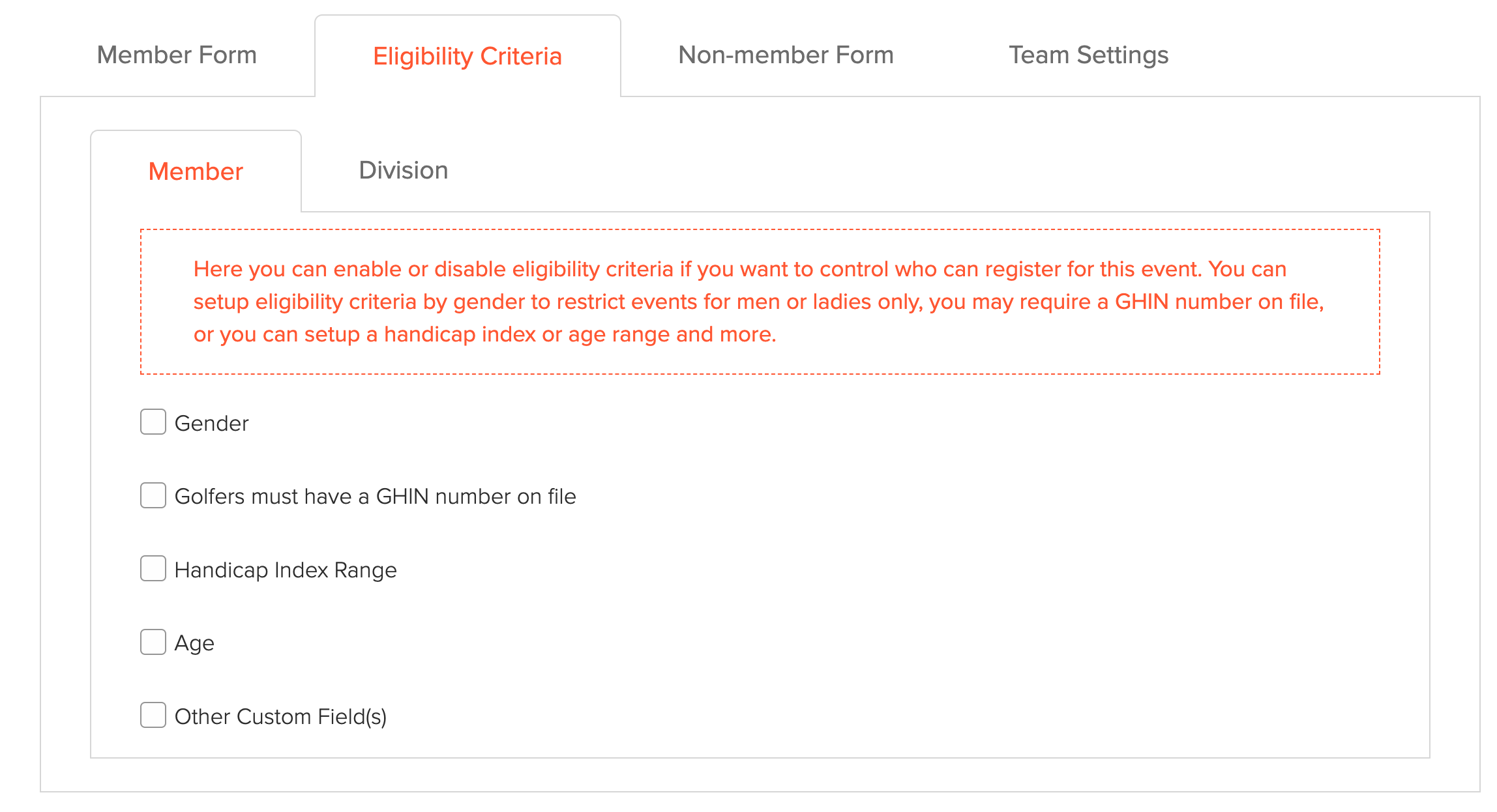
Eligibility Criteria: In some cases, players or teams need to meet eligibility requirements to register. Member and team eligibility criteria are available for registrations that include members. UK and Ireland WHS customers can also set guest eligibility criteria. This feature is enabled by default for Golf Genius TM Association customers. If you are a Golf Genius TM Premium customer and would like it enabled, contact your Golf Genius Account Manager. For details, Click Here.

Registration Dates
This section covers the "Registration Dates" tab in the Default Event Registration Setup and Registration Center (as shown below). Default open and close times can't be set; you can only set them within an Event/League.

To set registration dates, follow these directions:
Navigate to Event/League > Registration Center > Registration Dates tab.
Select the date and time when registration opens and closes.
Click "Save" to apply the settings.
If you have an invitation list set up for the Event/League, you can select separate open and close times for the players on the invitation list. You can also create staggered registration based on custom fields. If you maintain membership programs, you can also stagger registration by membership program. You can also open and close registration manually under the Event/League menu.
Registration Description
This section covers the "Registration Description" tab in the Default Event Registration Setup and Registration Center (as shown below).
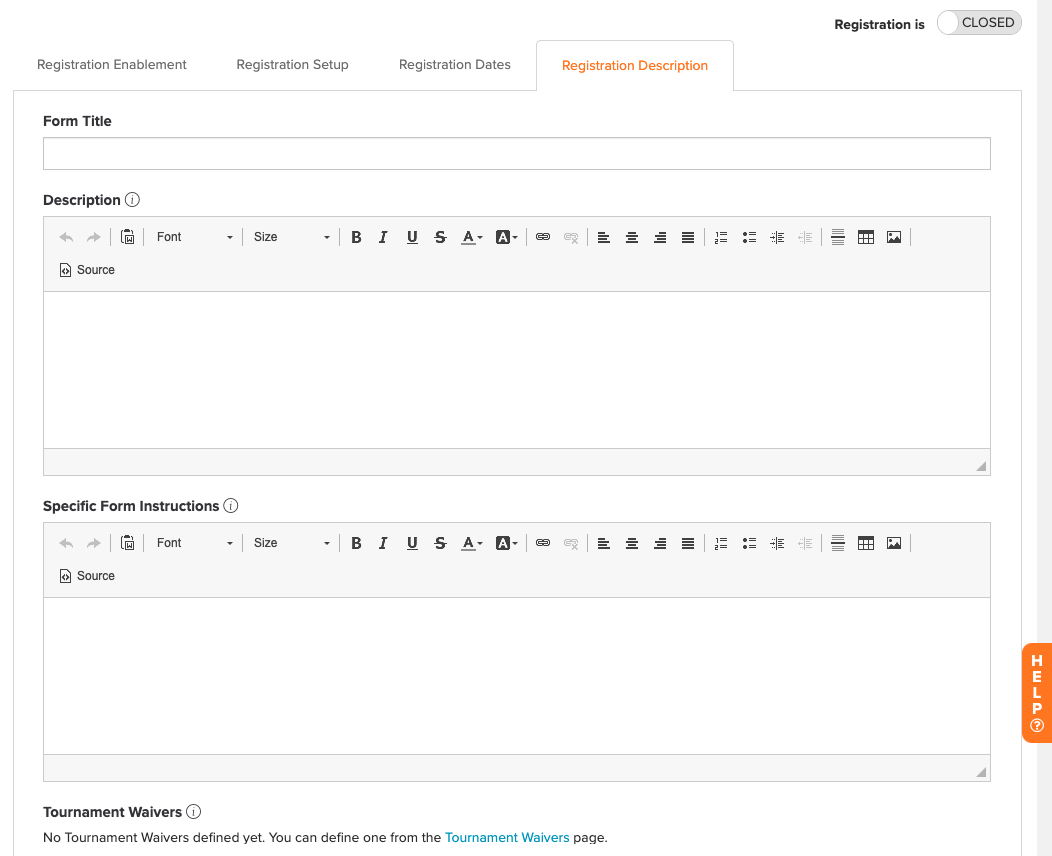
Form Title: Adds an optional title to the registration page on the Portal.
Description: An optional description players see before they register, such as the daily agenda, local rules, or the championship dinner menu.
Specific Form Instructions: Optional instructions players see during registration.
Tournament Waivers: Add any waivers players must agree to before they can complete registration. For details, Click Here.
Additional Options
Registration is Open/Close Toggle
If you set open and close times, registration opens and closes automatically. You can also open or close registration manually in the Registration Center (as shown below).

Registration Preview
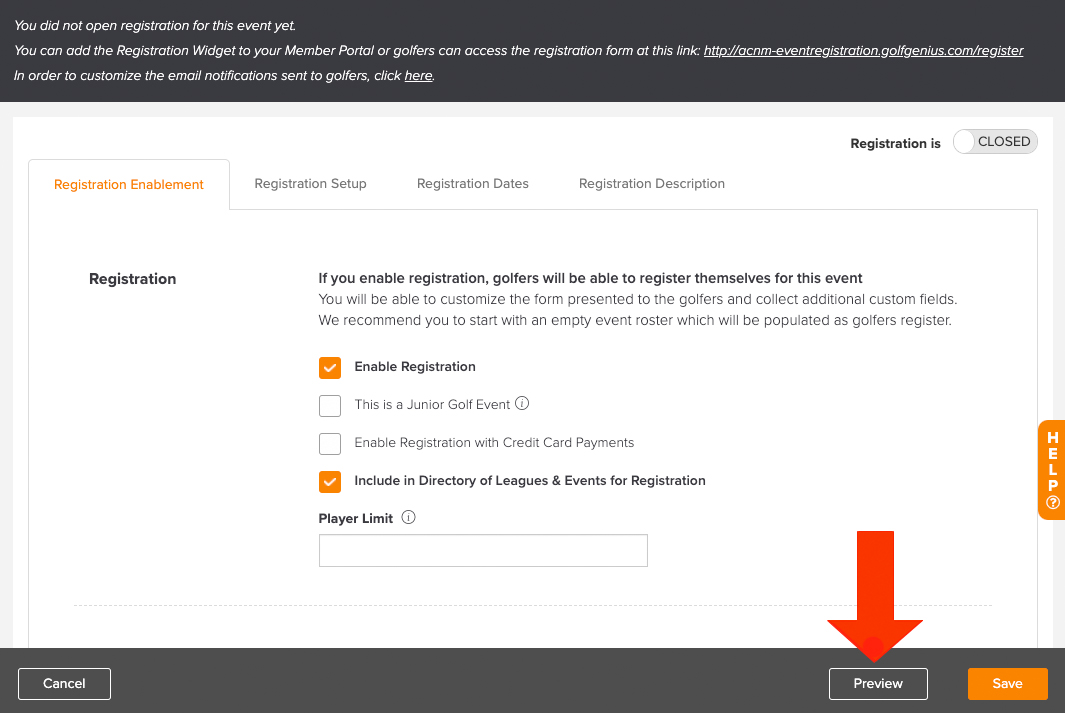
Managers can preview the registration form to see how it looks on the Portal without going through registration.
To open the preview, click "Preview" in the footer bar next to "Save" (as shown below). The preview opens in a pop-up window.
Customizing the Automated Registration Emails
Players may receive several automated emails (for example, registration confirmation, waitlist notice, and cancellation notice), each with a default message. To customize them, click the customization link in the registration form setup (as shown below).

This opens the Email Configuration page. For details, Click Here.