This feature is only available with the following products:

When using Event and League Registration for an event, you can further customize the registration process to allow players to select their playing division during registration. You can also require that certain eligibility criteria be met in order to register for specific divisions.
In this article, we will discuss how to set up and manage this type of registration option.
Setting up Division Selection During Registration
The first step is to ensure that the option to use multiple divisions is selected. To do o follow these directions:
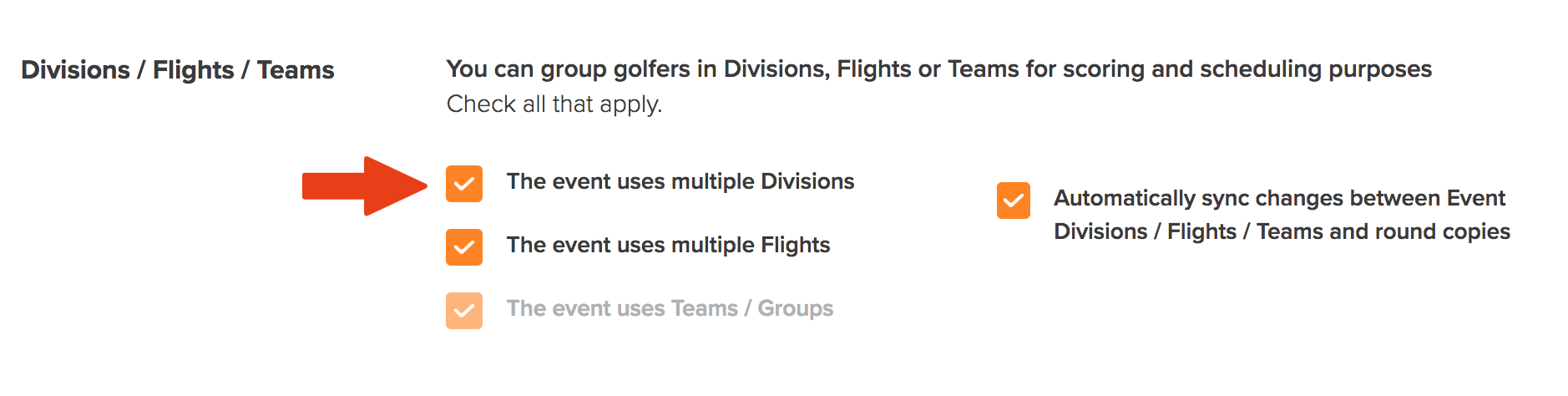
Go to the tab Event> Event Profile > General Setting tab. Make sure the option to use multiple divisions is selected (as shown below).

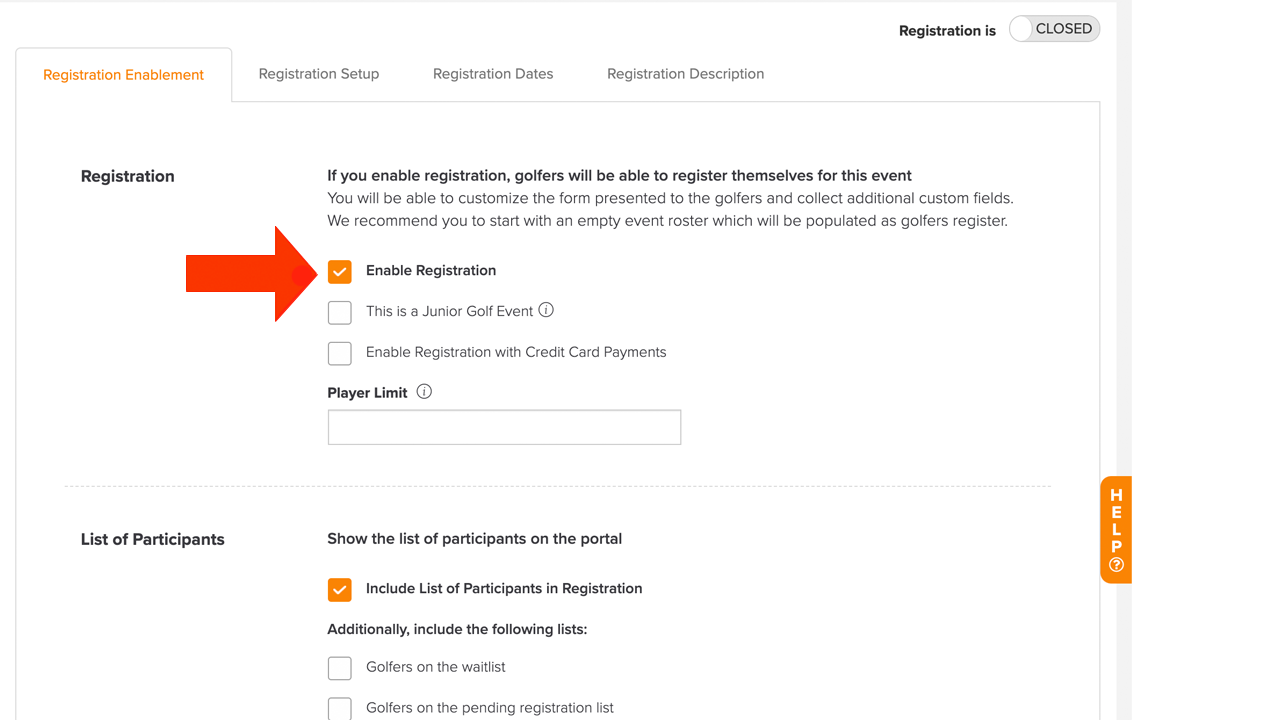
The next step is to enable registration in the Registration Center. Go to Event > Registration Center > Registration Enablement tab. Enable registration (as shown below).

If collecting payments during registration, select "Enable Registration with Credit Card Payments". For more details on all the options within the Registration Center, Click Here.
Click "Save" to apply the settings.
After enabling registration, go to the "Registration Setup" tab of the Registration Center. Select the option to allow players to choose the division(s) they are registering for (as shown below). Additionally, you have additional options to select; each will be discussed in further detail below.

Click "Save" to apply the settings.
Additional Option when Allowing Players to Choose the Division They Are Registering For
When you allow players to choose the divisions they are registering for (as shown below).

You will have the following additional options:
Enable eligibility criteria by division
Enable player limit by division
Allow players to select only one division
Each will be discussed in greater detail below.
Eligibility Criteria with Division Selection
If you have the Eligibility Criteria feature enabled, you can also require that certain criteria be met in order to register for certain divisions in member events. To use eligibility criteria, the registration type must include "Member" Registration (as shown below).

Additionally, select the option "Enable eligibility criteria by division" (as shown below).

Navigate to the bottom of the Registration Setup tab, select the "Eligibility Criteria" tab, and in the "Division" tab, you will see all of the divisions in the event. You can also add more divisions if needed.

When you click the "Edit" button for a division, you can select the eligibility criteria (as shown below).
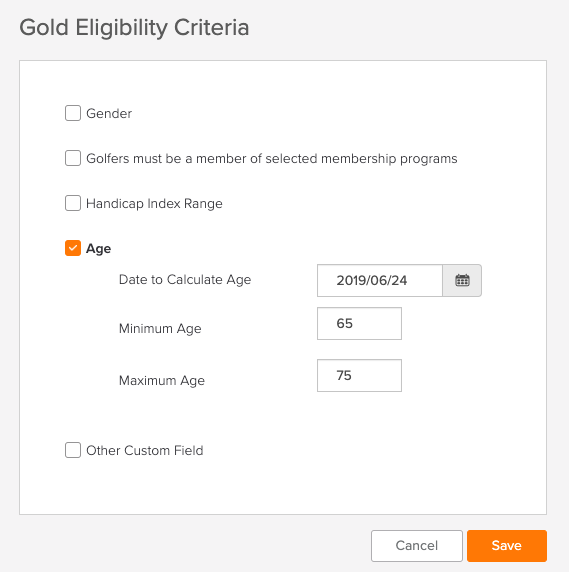
In the example above, players must be between the ages of 65 and 75 as of 6/24/2019 to register for the Gold Division. ]
Once all the divisions are listed and the eligibility criteria entered, you can save the form.
If payment is not collected during registration, the setup is complete, and you can open registration and allow players to sign up for one or more divisions. If payment is being collected during registration, you can take one of two approaches:
Set up multiple registration payment options.
Set up a single registration payment option.
Both approaches are discussed in detail below.
Player Limit with Division Registration
You can set a player limit for each division, which will generate a waitlist. Select the option "Enable eligibility criteria by division" (as shown below).

Navigate to the bottom of the Registration Setup tab, and navigate to the tab based on your registration setup:
Non-Member/Guest: In the Division Eligibility tab, you will see all of the divisions in the event. You can also add more divisions if needed.

Member: Select the "Eligibility Criteria" tab, and the "Division" tab, and you will see all of the divisions in the event. You can also add more divisions if needed.

When you click the "Edit" button for a division, you can set the player limit (as shown below).

Once all the divisions are listed and player limits entered, you can save the form.
If payment is not collected during registration, the setup is complete, and you can open registration and allow players to sign up for one or more divisions. If payment is being collected during registration, you can take one of two approaches:
Set up multiple registration payment options.
Set up a single registration payment option.
Both approaches are discussed in detail below.
Allow Players to Select Only One Division
You can limit players to selecting only one division when registering for an event/league. Select the option "Allow players to select only one division" (as shown below).

Once the option is selected, you can save the form.
If payment is not collected during registration, the setup is complete, and you can open registration and allow players to sign up for one or more divisions. If payment is being collected during registration, you can take one of two approaches:
Set up multiple registration payment options.
Set up a single registration payment option.
Both approaches are discussed in detail below.
Setting up Multiple Registration Payment Options
Under the first approach (which is used most of the time), you will need to create multiple registration options. This approach should be used in the following cases:
Players can select only one division.
Players can select multiple divisions (in which the fee is not the same across divisions).
Players can select multiple divisions (as a package) with a discounted fee.
When using this approach, the registrant can select only one registration option, which may include one or more divisions (as shown below). Note:
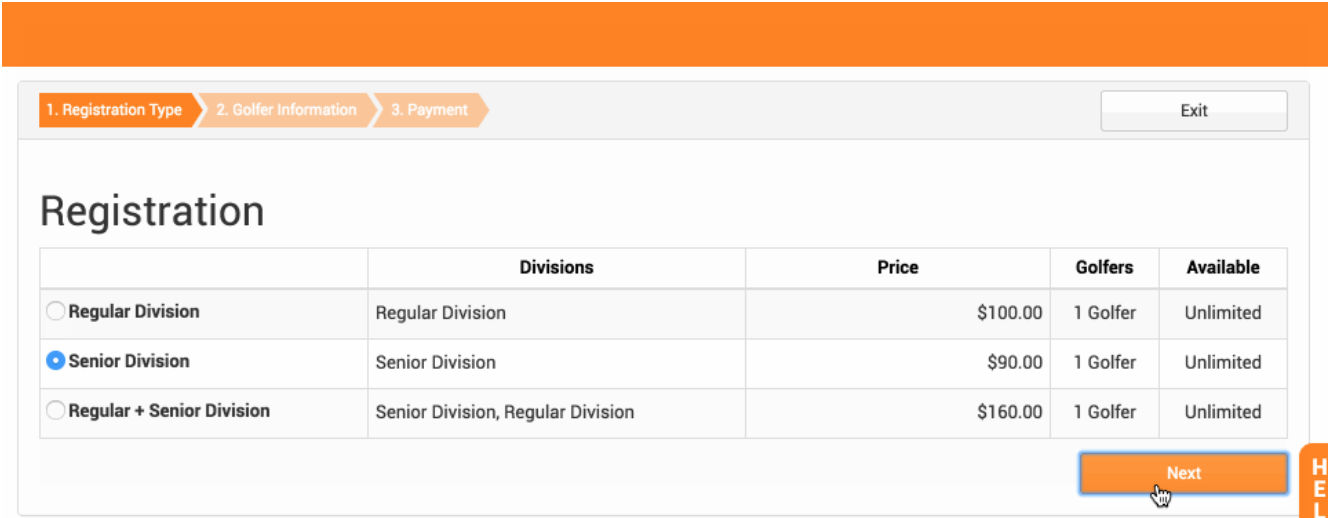
To set up this approach, follow these steps:
Go to Event > Registration Payments > New Registration Option.
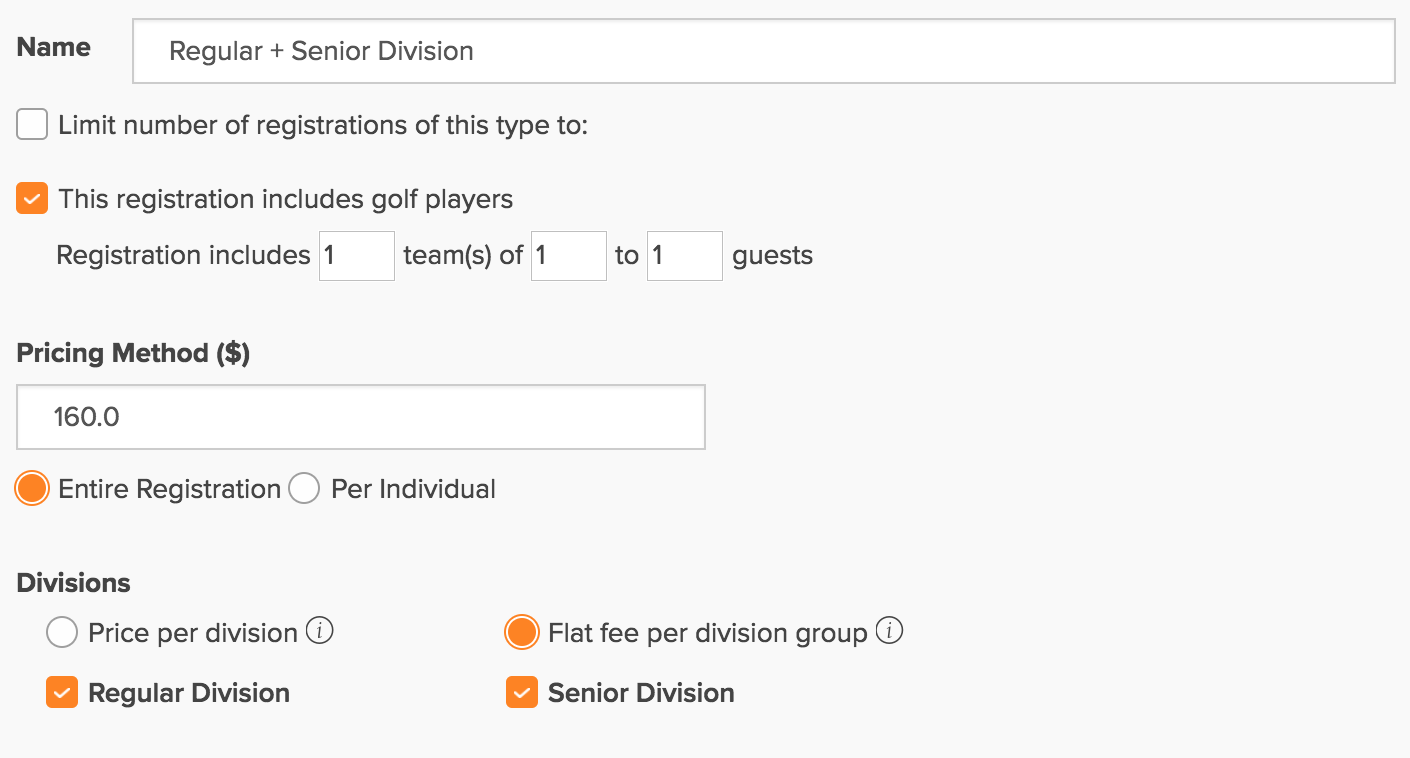
Set up the first registration option. Enter the fee, select "Flat fee per division group", and select the division(s).

The registration option above includes the Regular Division and Senior Division for $160.
Click "Save".
Repeat Steps 2 and 3 to add the remaining registration options.
After you've created all of your registration options, they will be listed (as shown below). In this example, a player can register for the Regular Division ($100) or the Senior Division ($90). They can also register (if eligible) for both divisions at a discounted price ($160).
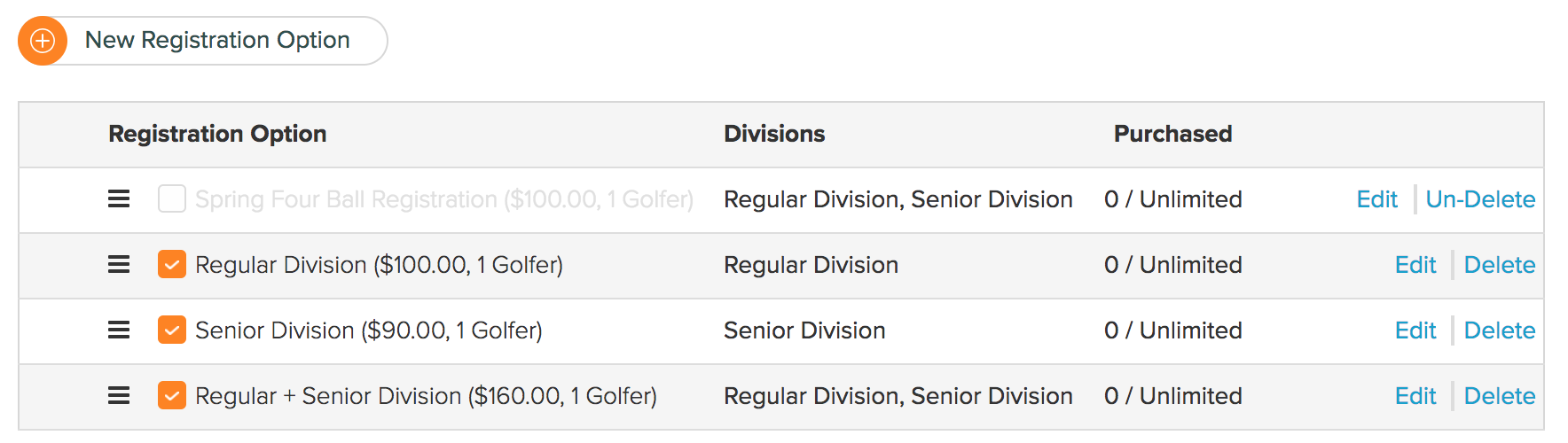
At this point, you can now open registration to allow players to register and pay.
Setting up a Single Payment Registration Option
The other approach is to create a single registration option. This approach can be used when entry fees are the same across all divisions.
After the registrant selects the registration option, they move to a page where they can select one or more divisions (as shown below).

In the example above, the registrant can register for multiple divisions unless you have set the option to allow golfers to select only one division during registration.
To set up this approach, follow these steps:
Go to Event > Registration Payments > New Registration Option.
Set up the registration option. Enter the fee, select "Price per division", and select all the divisions available for registration.

Click "Save".
At this point, you can open registration so players can sign up and pay.
Viewing and Manually Changing Divisions
Under either of the approaches above, players will be automatically placed in their selected division(s) within the event. You can view and change the players in each division by going to Event > Event Divisions/Flights/Teams (as shown below).
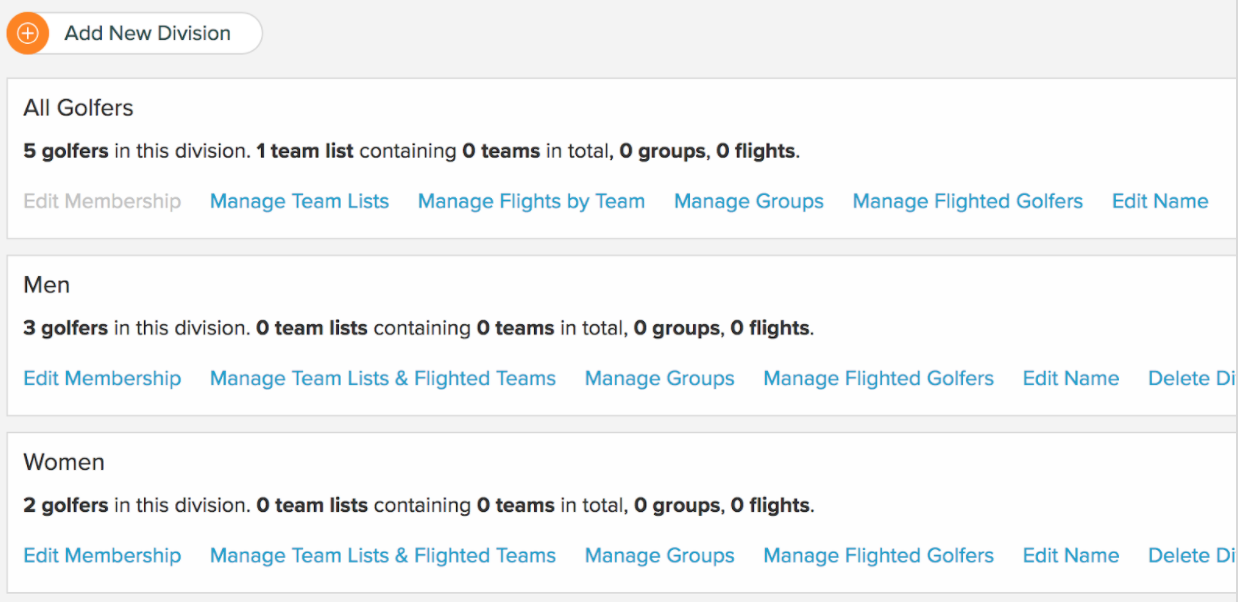
A quick and efficient way to review and make changes to divisions is to compare them. You can do this by going to Event > Event Divisions/Flights/Teams > Compare Divisions (as shown below).
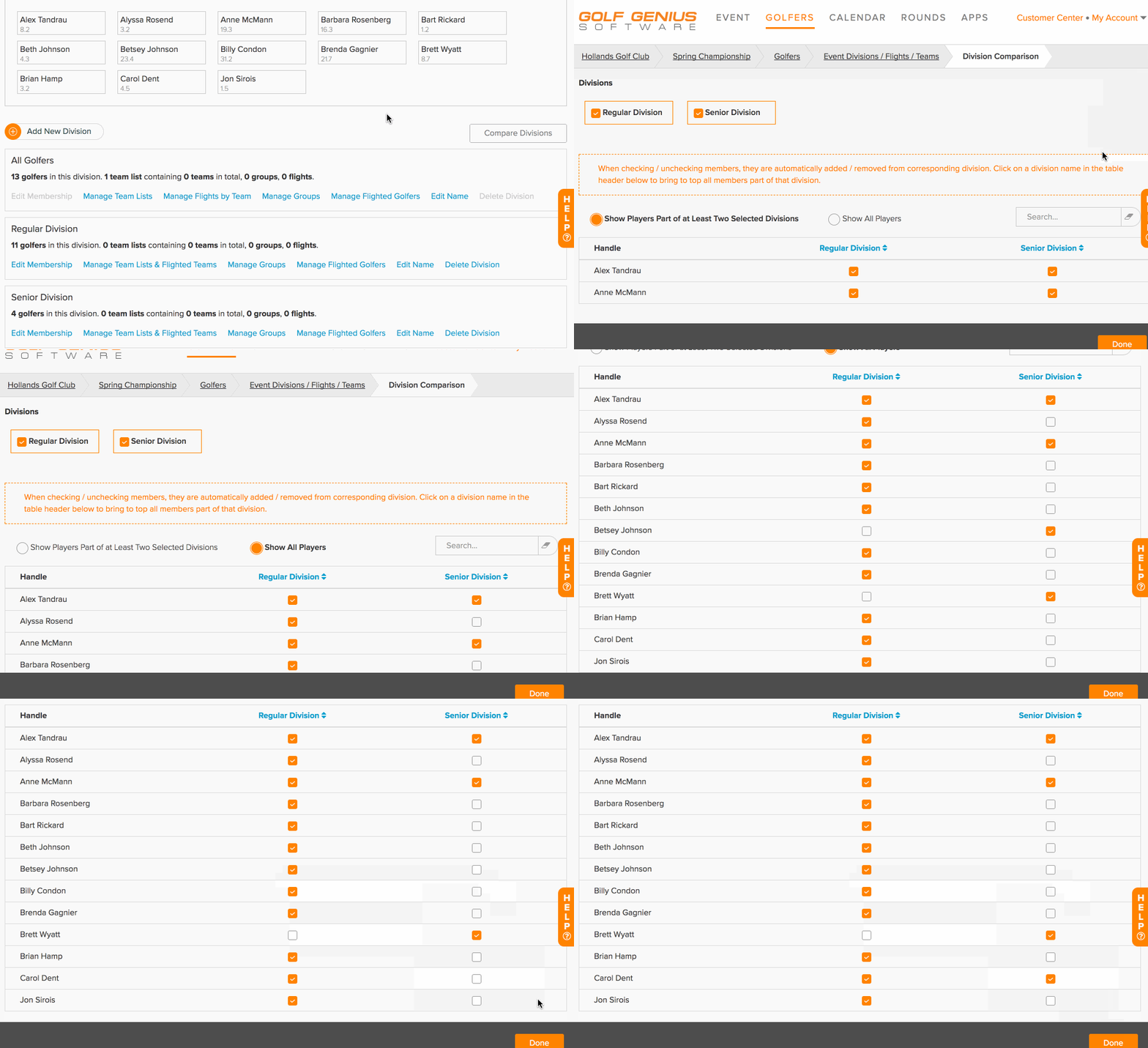
From this page, you can view the players in each division and quickly make any necessary changes.
Keep in mind that players can also log in and change their division selection as long as a manager has not already changed their division. If a manager has already changed their division (from the Manager Site), then the player will not be permitted to change their division and should contact a manager.
Team Registration with Division Selection
When using division selection for team registration:
Teammates will be placed in the same division after registration.
For member-member events, all members in the registration team must be eligible for the divisions they want to register for.
For member-guest events, the guest is automatically placed in the member’s divisions, and no eligibility checks are performed.
Teams will automatically be created in the "All Golfers" Division.
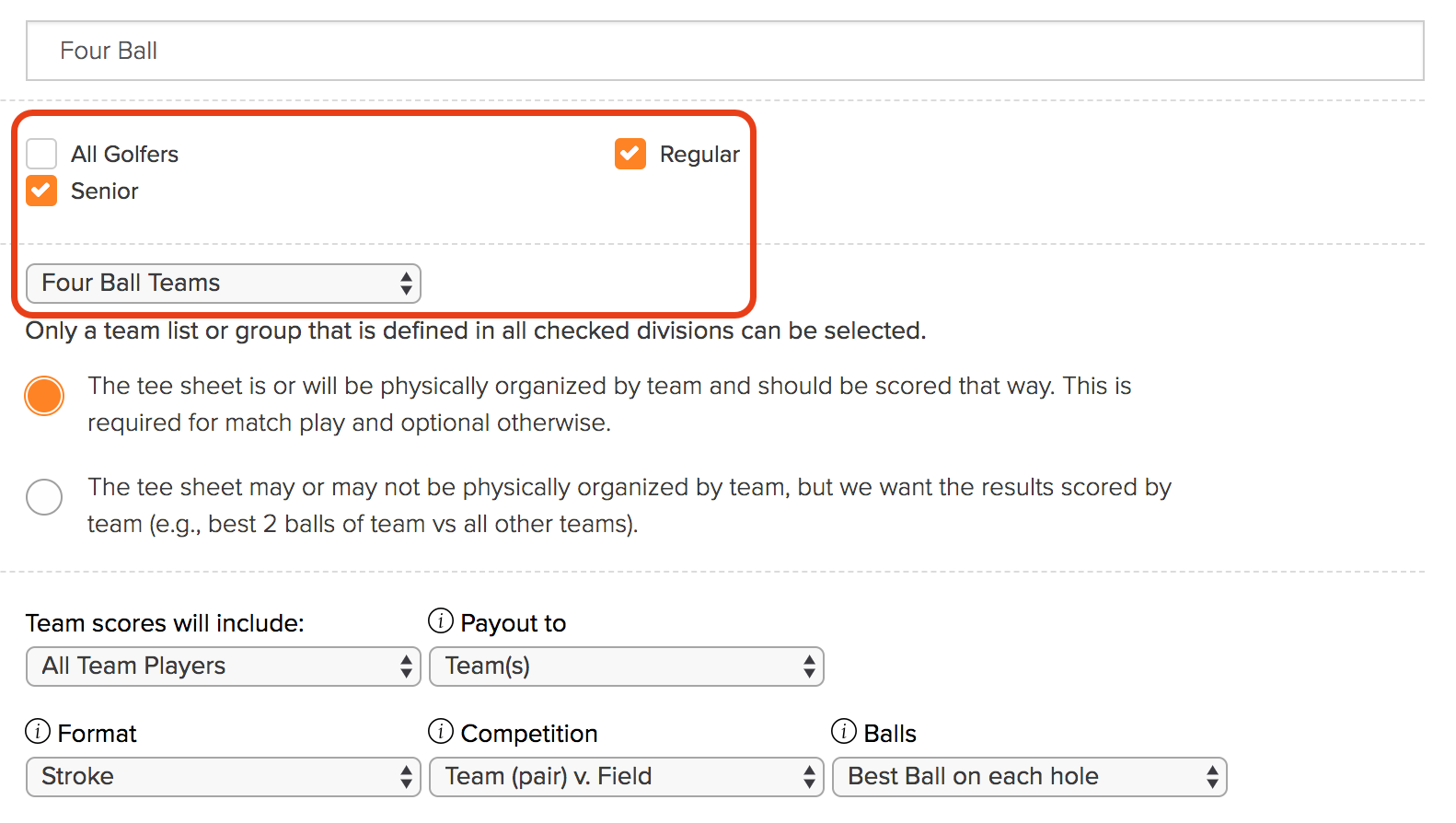
We recommend using the team list in the "All Golfers" division when setting up tournaments, even if the competitions are separated by divisions. You do not need to create team lists within the other divisions. When setting up the tournament, select the playing divisions and the team list (as shown below). The leaderboard will then be separated by division.