
This feature is available for the following products:

Smart TVs are a great option when using our TV Display. No cords or laptops are necessary. Simply open the TV Display link in the Smart TV's browser.
In this article, we will discuss how to display the leaderboard on a Smart TV and provide some recommendations for choosing a new Smart TV.
Adding a Web Browser to your Smart TV
Your Smart TV may already have a web browser pre-installed, which may be sufficient to display the TV Leaderboard. If you would prefer a more familiar browser, you may be able to add one such as Google Chrome or Mozilla Firefox.
Note: Each manufacturer has a different way of accessing its app store. Please consult your TV manufacturer's instruction guide or website for more details.
Displaying the Leaderboard on a Smart TV
To display the leaderboard on your Smart TV, follow these directions:
Open your Smart TV's web browser.
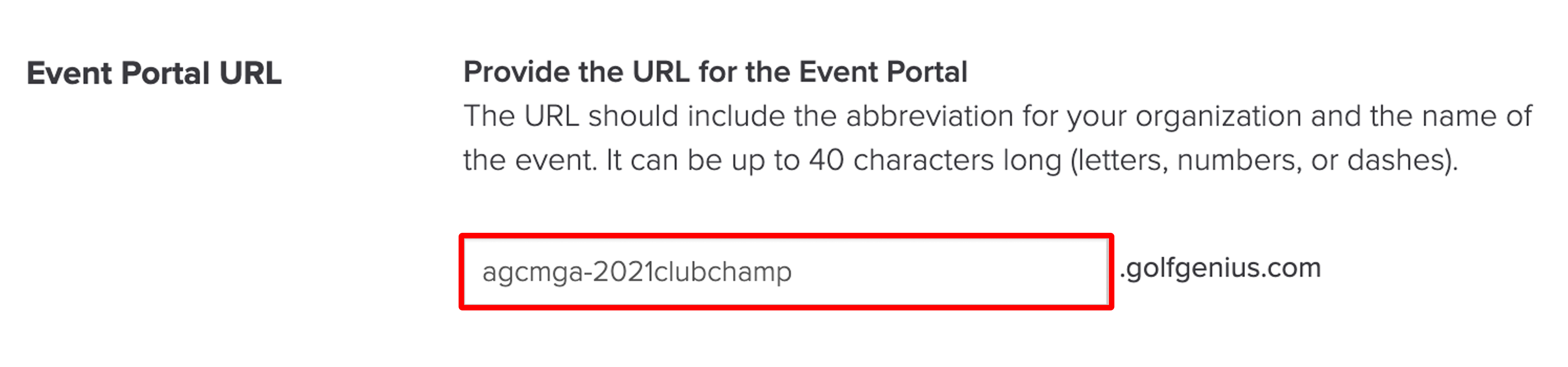
In the address bar, enter your leaderboard's direct link. The direct link is the prefix of your event/league followed by ".golfgenius.com/tv". For example, if the prefix is "2016memberguest," the TV leaderboard link is 2016memberguest.golfgenius.com/tv.
To find your event/league prefix, navigate to Event/League > Event/League Profile > General Settings > Event Portal URL. You can also modify your prefix here (as shown below).

Press "Go" or "Enter" to navigate to your leaderboard.
Click "Fullscreen" on the TV Display control bar for the best display.
Suggestions When Shopping for a Smart TV
If you are shopping for a Smart TV, we suggest the following:
Some Smart TV browsers do not support our TV Display and will display code instead. When shopping for a TV, take an example TV Display link to the store and test it before purchasing. This will ensure you are getting exactly what you expect.
Find a Smart TV that makes it easy to access the TV Display link. A Smart TV that comes with a keyboard or presentation pointer will make it much easier to access and connect the TV Display. User-unfriendly TV remotes will take more time to access the link.
Make sure the Smart TV browser supports the TV Display's "Fullscreen" button. Some Smart TV browsers cannot go to full screen and always show the URL at the top. This may not be an ideal presentation.
Consider a Fire TV Edition Smart TV. This allows you to download the Golf Genius TV Display app directly to the TV for a similar experience to the Fire TV Stick.