
Note: This service is available to SIM customers worldwide and all other customers outside the United States. It is not available to any non-SIM customers in the United States or to GHIN Clubs.
When using Handicap Server to manage League or Event Handicaps, you can integrate with our system. When integrating Handicap Server with Golf Genius, you can retrieve Handicap Indexes and post adjusted gross scores back to Handicap Server and another handicap service.
Setting Up Handicap Server
To set up the integration, follow these instructions:
Obtain League ID from Handicap Server: To set up the integration with Handicap Server, you must first have an account. Click Here to set up or access your existing account with Handicap Server. Within Handicap Server, navigate to your integrations page (Setting > Integration > Golf Genius) to access your League ID provided by Handicap Server.

Enable the Integration:
Future Events/Leagues (Customer Center Defaults): If you would like to apply this to all future events/leagues, from the Customer Center, navigate to Customer Settings > Default Settings > Handicap Settings.
Existing Event/League (Event/League Level Defaults): If you have already created your League or Event in Golf Genius, within the event, navigate to Event/League > Event/League Profile > Handicap Settings.
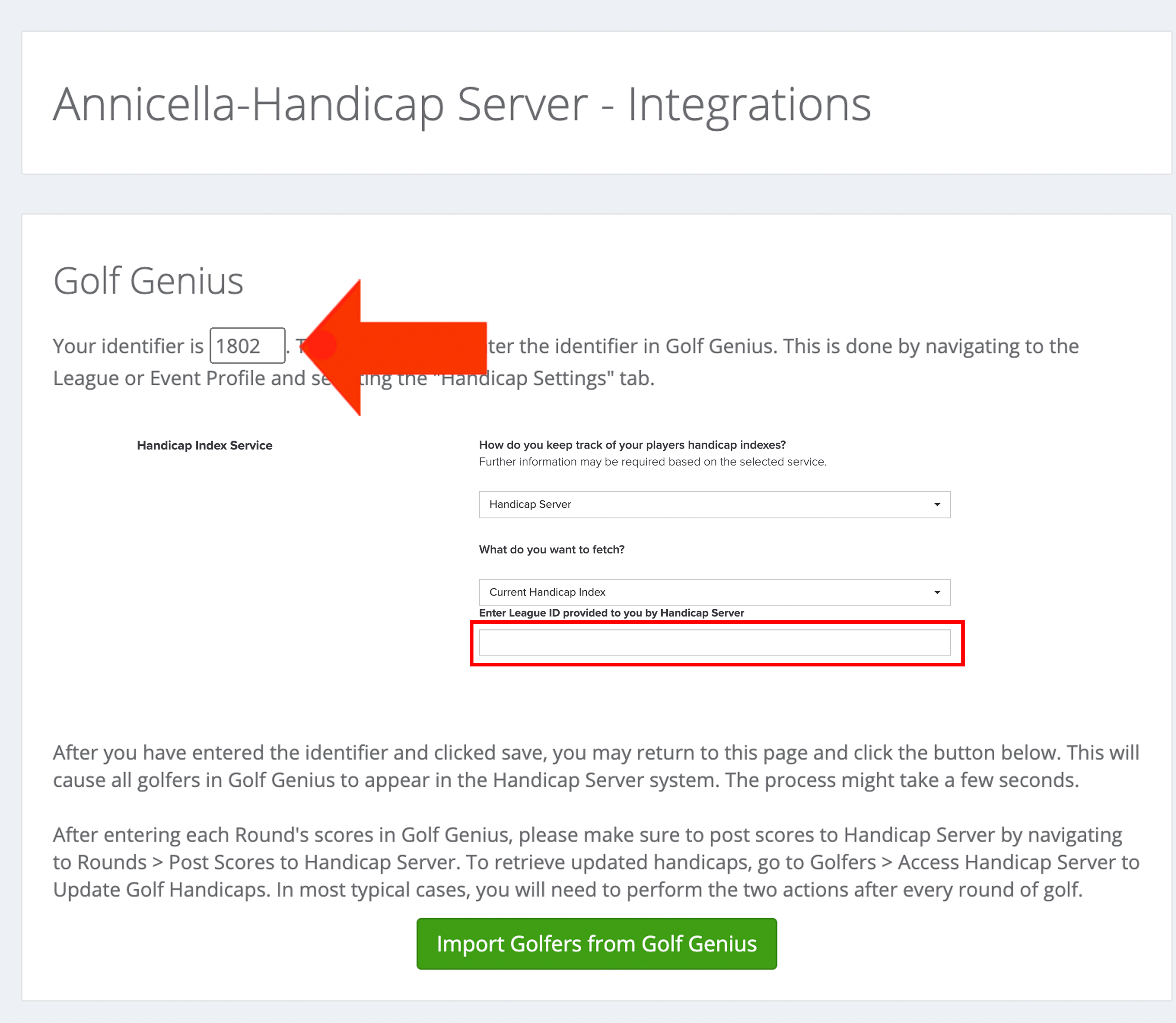
Set the "Handicap Index Service" to Handicap Server and enter your Handicap Server Identifier in the box for "Enter your League ID provided to you by Handicap Server" (as shown below).
Automatic Handicap Update: Enable the option "Click to set automatic Handicap Index Updates" (as shown below).

Enable the following options:
Automatically update Handicap Index in the Master Roster, every day at (Customer Center Default Settings Only): The Handicap Indexes will then update in the Master Roster daily at the selected time. When selecting this option, the additional option will be available:
Automatically update Handicap Index® from the Master Roster into Event Roster: Select this option if you would like Indexes to update in event/league roster automatically with the Master Roster update.
Click to automatically update Handicap Indexes in the Event Roster: Select one of the following options:
Automatically update Handicap Indexes in the Event Roster, "X" day(s) before: This option will typically be used when your rounds don't fall on a typical pattern.
Fill in the number of days to update before the round. For example, if you only want to update the indexes two days before the round, enter a 2.
Further, two additional options are available:
Each round: Use this option to update the Handicap Indexes before every round.
First round: Use this option only to update Handicap Indexes once and before the first round.
Automatically update Handicap Indexes in the Event Roster, every week on: "Day of the Week:" This option will typically be used if you update Handicap Indexes on the same day every week.
Select the day of the week on which you would like the indexes to be updated.
Score Posting: If you are posting scores to GolfNet/GHIN in addition to Handicap Server, you may also set that in the Score Posting section by choosing "Post Scores to GolfNet and Handicap Server" (as shown below).

Click "Save."
Adding Golfers to Handicap Server
Adding golfers to Handicap Server is as simple as posting scores. When you post scores to Handicap Server, this will automatically add golfers to your Handicap Server Roster and start tracking their League Handicaps.
Once you have set up your Handicap Server Integration, add golfers to your Event/League Roster. Set up your first round by creating pairings, set course/tee, and adding tournaments. You can then enter scores and post those scores to Handicap Server. To post scores, go to Rounds > Post Scores to GolfNet/GHIN and Handicap Server. Complete details of posting scores will be discussed later in this article.
Notes:
It is important that each golfer uses the same unique name across all Leagues and Events. If you have a golfer that goes by the nickname of Jon Smith, keep his name as Jon Smith, don't change it to Jonathan Smith in another league/event, or this will create a new golfer in Handicap Server.
As noted previously, it is important that each golfer uses a unique name. This is very important if you have two golfers who have the same name. If you have two golfers with the same name, for example, Nick Smith, give each golfer a unique name such as Nicolas Smith and Nick Smith or even Nick Smith1 and Nick Smith2.
If you have new golfers in your league roster, once they play a round and you post scores to Handicap Server in the round they played, they will automatically be added to your Handicap Server Roster.
Manually Updating Handicap Indexes from Handicap Server
To manually force a Handicap Index update from Handicap Server, follow these directions:
Within your event/league, go to Golfers > Access Handicap Server to update Handicap Indexes.
Select specific golfers or all golfers using the golfer check box.
Select the update method:
Current Handicap Index: Retrieve Handicap Indexes as of the current date.
Handicap Index on a specific date: Retrieve Handicap Indexes from a specific past date.
If you have multiple rounds, select the round you would like to update Handicap Indexes for.
Click "Update."
The handicaps for the selected golfers will then be updated for the event or league (as shown below).
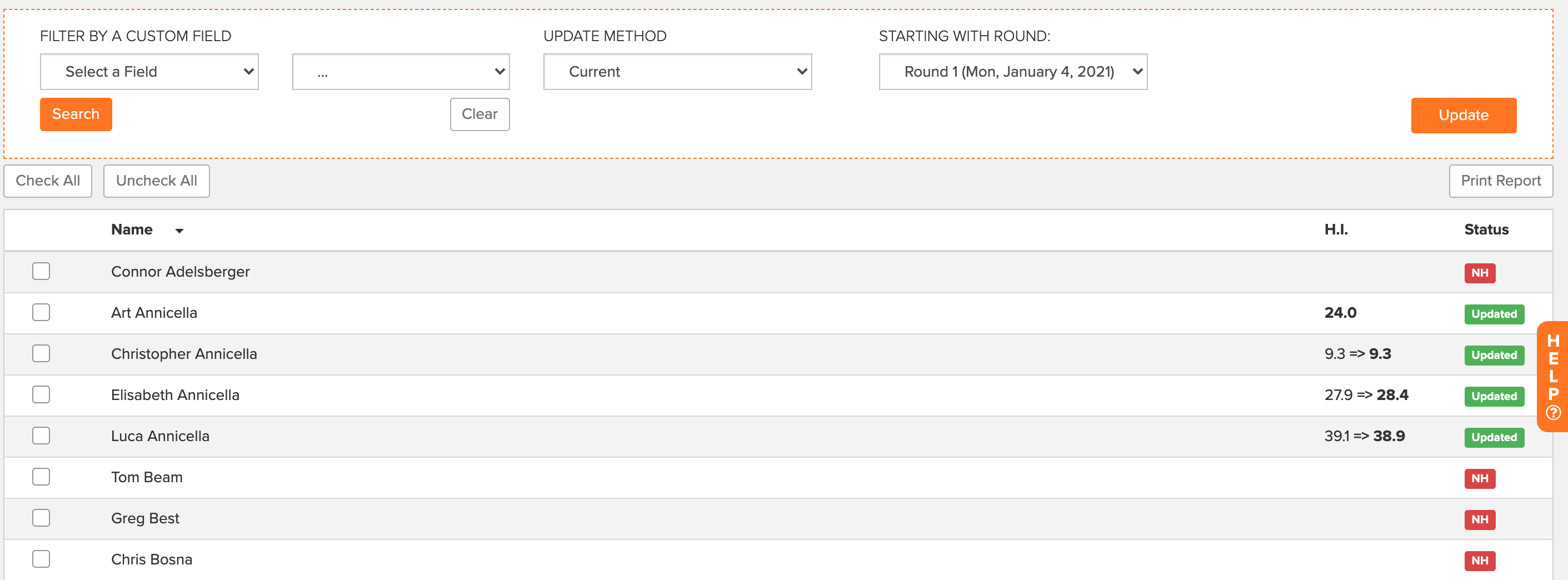
The "H.I." column will display the change in handicaps before and after the update. The "Status" column indicates whether the golfer's handicap was successfully updated.
Note: If you run a weekly league, create divisions and/or flights using a playing handicap or handicap index, and after every handicap index update, you refill the flight, you can use the Automatic refill feature. For more details, Click Here.
Posting Scores to Handicap Server
After a round is complete and hole-by-hole scores are entered, follow these instructions to post scores:
Go to Rounds > Post Scores to GolfNet/GHIN and Handicap Server.
Select who you'd like to post scores for. Use the check box on the left to select the golfers or click "Check All." You can also filter golfers by custom field.
Select the score type (e.g., home, away).
Click "Post Scores."
If a golfer's score was successfully posted, a green icon appears to the right of their name. If a golfer's score was not successfully posted, a red icon appears. If it was unsuccessful, hover over the red icon for the reasoning behind the failed posting.
Troubleshooting Failed Posts
GHIN refused the ID/Last Name combination: The last name in the event/league roster does not match the last name of the player with that GHIN ID. Two possible reasons are:
Last name is misspelled: Go to Golfers > Event/League Roster. Click on the player and re-enter the last name to match the last name in the GHIN database. Save the changes and repost the score. If the last name is incorrect in the GHIN database, contact your local golf association.
Incorrect ID is entered: Golfers > Event/League Roster. Click on the player and re-enter the correct ID.
Tee Missing 9 Hole Slope/Rating: When attempting to post a 9 hole scores, but the tee is missing the 9 Hole Slope and Rating you will get this error. To update the tee and allow the scores to be posted, you will need to update the tee details in the course details. For information on updated course details, Click Here.
Not enough scores: A minimum of 14 scores must be entered to post an 18-hole score. A minimum of 7 scores must be posted for a 9-hole score. If the minimum is not met, scores will not be posted.
To resolve the issue, go to Rounds > Enter Scores and enter a sufficient number of scores. For instance, if playing a best ball of four tournament, there may be some holes where scores were not entered for a golfer because their ball was not counted. Those scores may need to be entered to meet the minimum. Another common mistake is setting the golfers on an 18-hole course when only 9-holes were played. To resolve this issue, go to Rounds > Edit Existing Pairings. Set the golfers on the front 9 or back 9 (as shown below).

Net: Read Timeout: This error indicates an issue with the Handicap Server servers. You can wait until the issue resolves itself within a day or reach out to the support team.
Score Posting Report
To view the full posting results, go to Rounds > See Posting Results. The time of posting will be listed, and the summary of successful and failed posts (as shown below).

To download the posting report into a PDF, click "Print Full Report."
Here are a couple of related FAQ articles for posting scores: