
This article is intended for users of the following products in the UK and Qatar.

Our Club Score Input Terminal is an easy way for members to check in for general play and tournaments, and members/guests to post competition and general play scores from a terminal located within the clubhouse, a locker room, or any other location where you may have a computer or tablet on site.
In this article, we will discuss how to use the terminal as a player. For a downloadable guide to provide to members and print for the golf shop, Click Here.
For details about setting up the input terminal, Click Here.
Logging into the Terminal
Once your terminal is set up, members (anyone on your master roster) and guests can log in to the terminal to post scores (as shown below).

To use the terminal, members or someone on your master roster can log in and check in, post competition scores, and general player scores. To log in, members must use one of the following methods:
Log in with Email & Password: Members of the club can use their Golf Genius account (email and password) in order to access the terminal.
Login with CDH Number: Members will be prompted to enter their CDH Number.
Last Name: Members are prompted to fill in their last name. If multiple members are found, they will be asked to select the correct profile.
Visitors or anyone not on your master roster can also log in to the terminal and post general play scores. To log in, visitors must use the following method:
Login with CDH Number: Visitors will be prompted to fill in their CDH Number.
Using the Terminal
Once a player is logged in, they will land on the Home Page. Once on the home page, players will have quick access to their handicap index (Note: Not displayed for all countries), today's events, and general play score posting (as shown below).
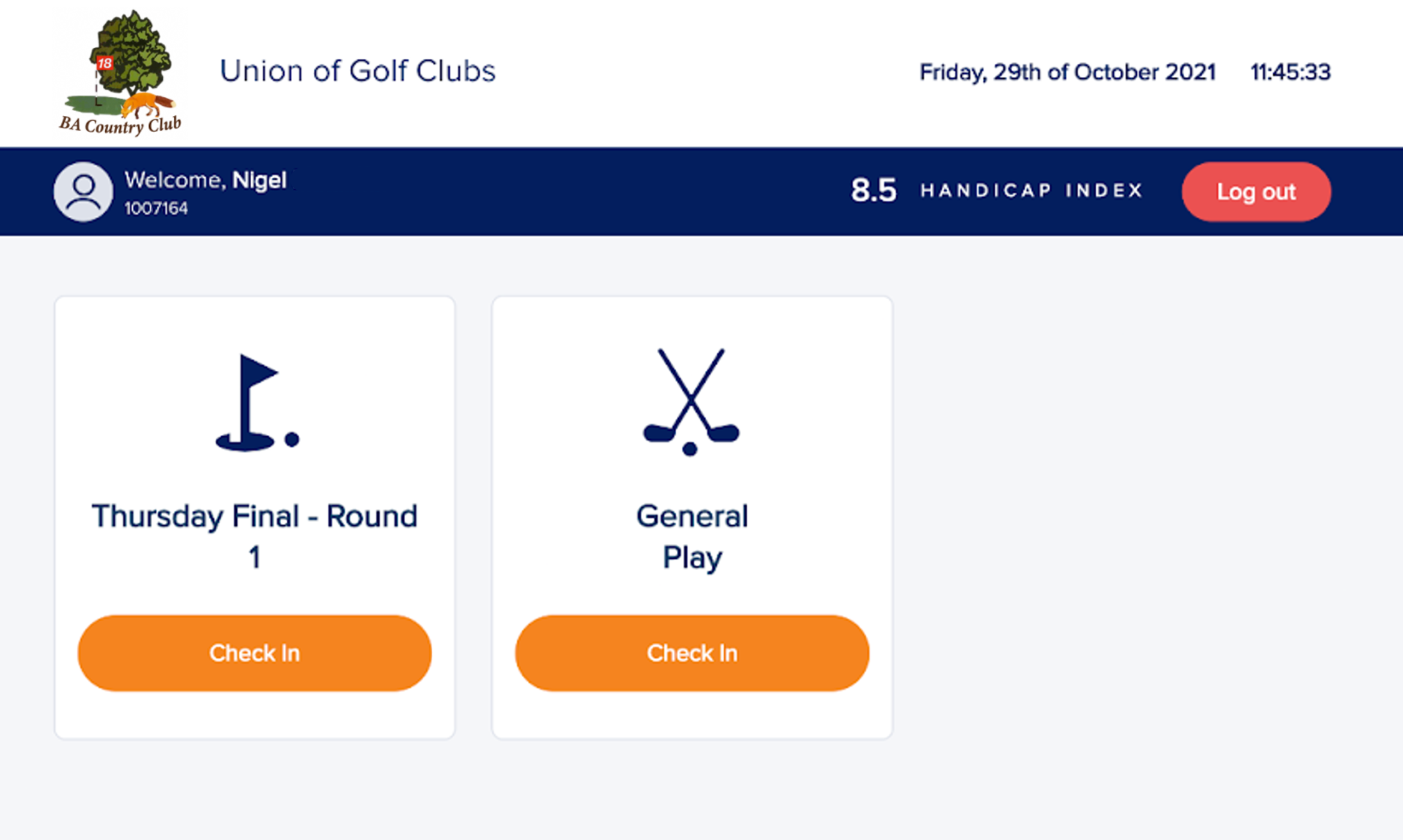
For events or general play, there might be a few status choices:
Check-in: When a player arrives at the club and is ready to play, they can press "Check-in."
Event: This will inform the Event Manager that the player has checked in for this round.
General Play: This registers the player's intent to play a round, allowing them to enter scores later.
Enter Scores: Once players have checked in, they will enter scores after playing the round.
Today's Events
This will display all the individual and team events available for the day. Some events might require registration, while others you will be able to check in for.
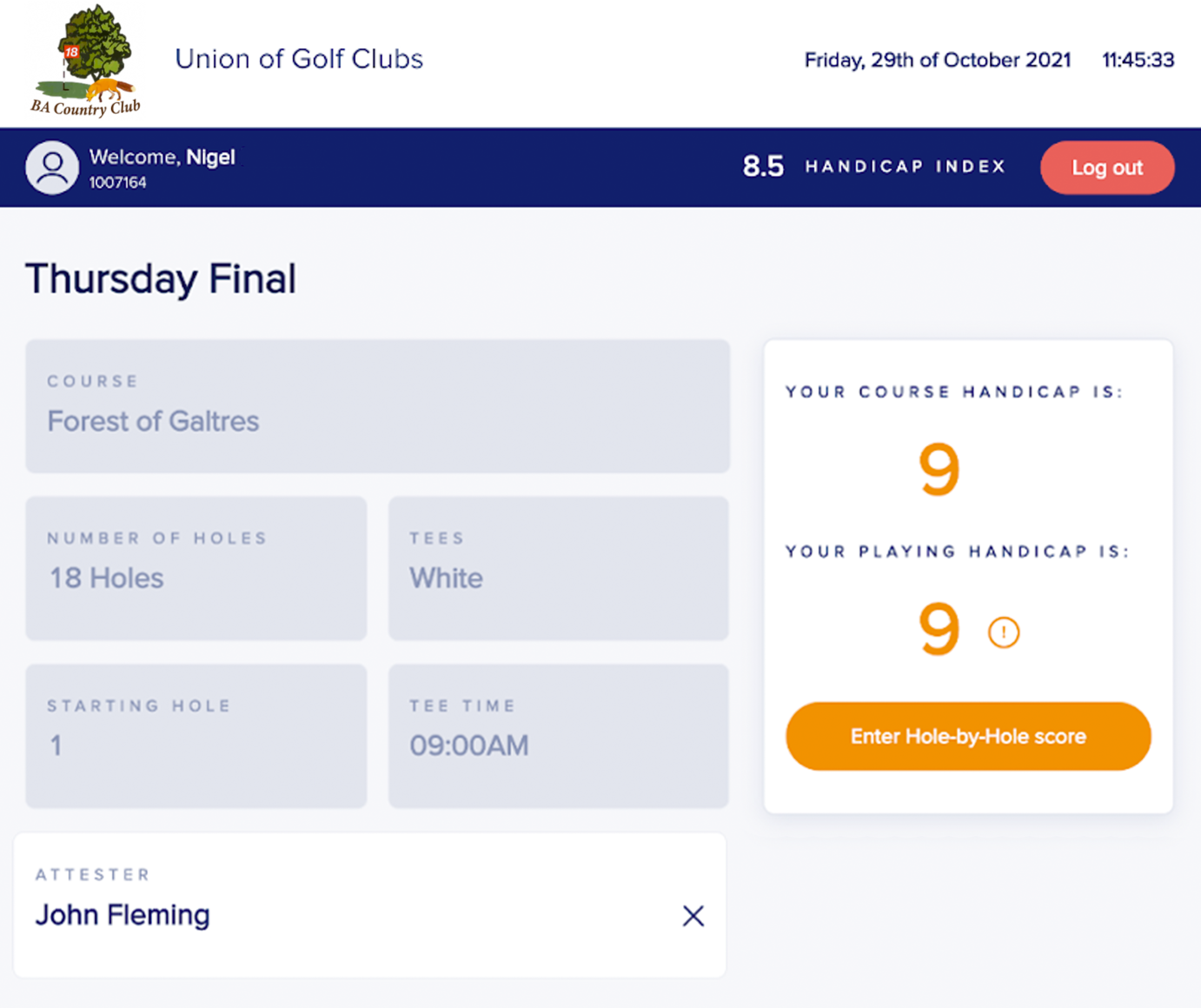
Individual Events: If there is an individual event on that day, the member can check in, select an attester (if necessary), go play, and then revisit the terminal and enter scores for that event (as shown below).

Team Events: If there is a team event on that day, the golfer checking in can build out their team during check-in. To add a golfer to the team, follow these directions:
Select either Add Member to look up a golfer on the club roster, or Add Visitor to look up a golfer in the WHS database (as shown below). Both options are disabled once the team is full.

Select the options depending on how you need to add someone to your team:Add Member: Search the golfers available for the round by name or membership number. Golfers who are not eligible for the round, or who are already checked in to another event, are shown but cannot be selected (as shown below).

Add Visitor: Search the WHS database for other golfers using one of the following options:
Lookup by Membership Number: When looking up by membership number, enter the other player's WHS ID number and click search. If a golfer is found, you can select them and add them to your team (as shown below).

Lookup by Club, Last Name and First Name: Note: Lookup option might vary by WHS Region. Enter the club name (if displayed) and last name at a minimum. Narrow results by entering a first name as well. If the lookup doesn't find your golfer, verify the spelling of the golfer you are looking up (e.g., searching "Jon" vs. "John"), or reduce the number of characters used. Select a golfer from the results to be added to your team (as shown below).

The golfer checking in is always listed first in the team panel and marked (Me); visitors are marked with a VISITOR tag (as shown below).

Once the team has an allowed number of golfers, select an attester (if necessary) and click Check In. If the team has too few or too many golfers, Check In displays a message indicating how many to add or remove (as shown below).

The team panel displays each golfer's handicap based on the round format: Alt-Shot and Scramble show the Team Handicap along with each golfer's Handicap Index; Betterball shows each golfer's Handicap Index and Playing Handicap.
After completing check-in, golfers can go play and then revisit the terminal to enter scores for the entire team.
General Play
Members and visitors can enter scores for general play at the club to be posted to the WHS (as shown below).
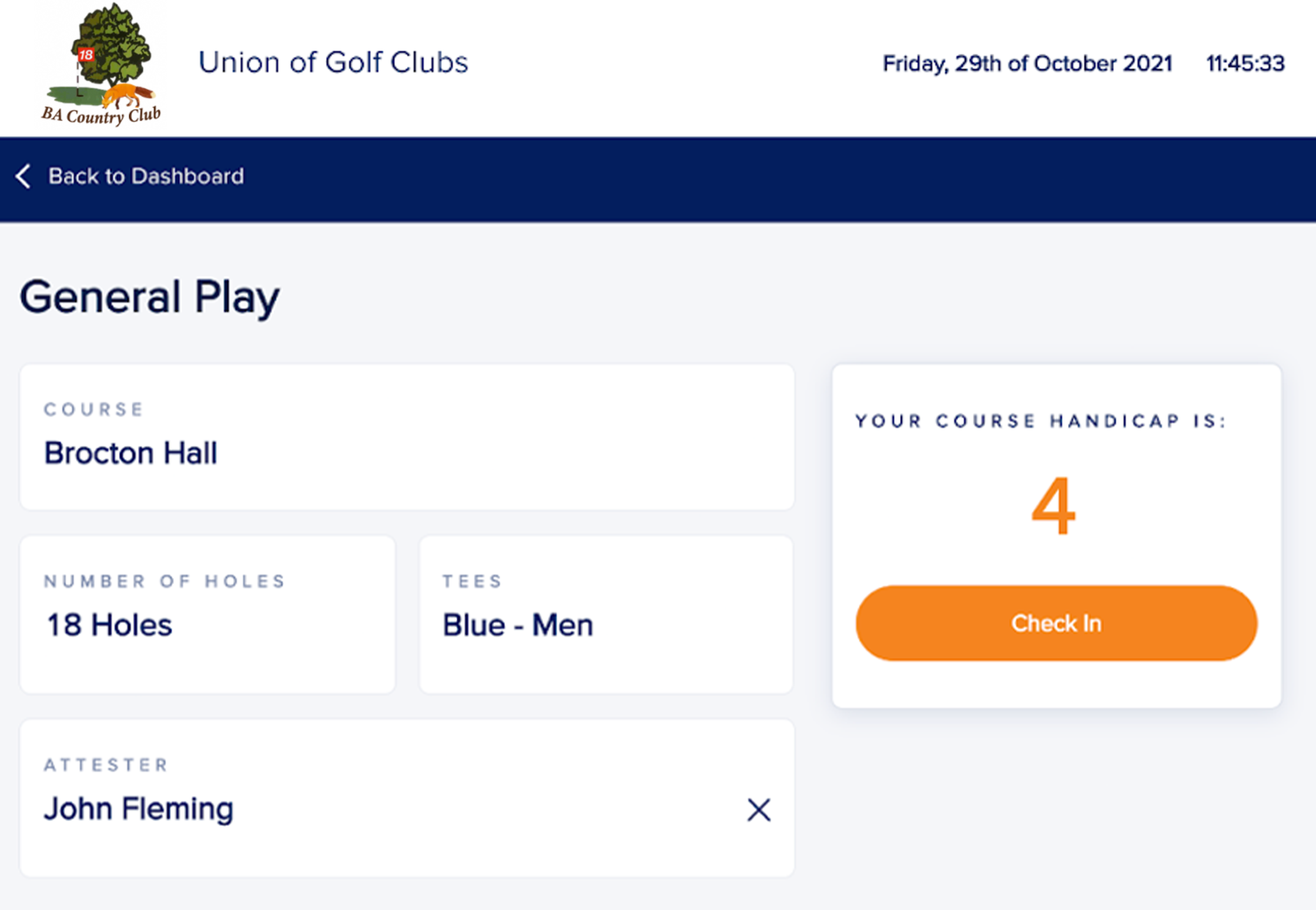
After clicking the general play check-in button, players will be directed to the details page, where they will be asked to fill in the following information:
Course (only the courses selected in Terminal Setup will be available)
Number of Holes
Tee
Attester
Entering Scores on the Terminal
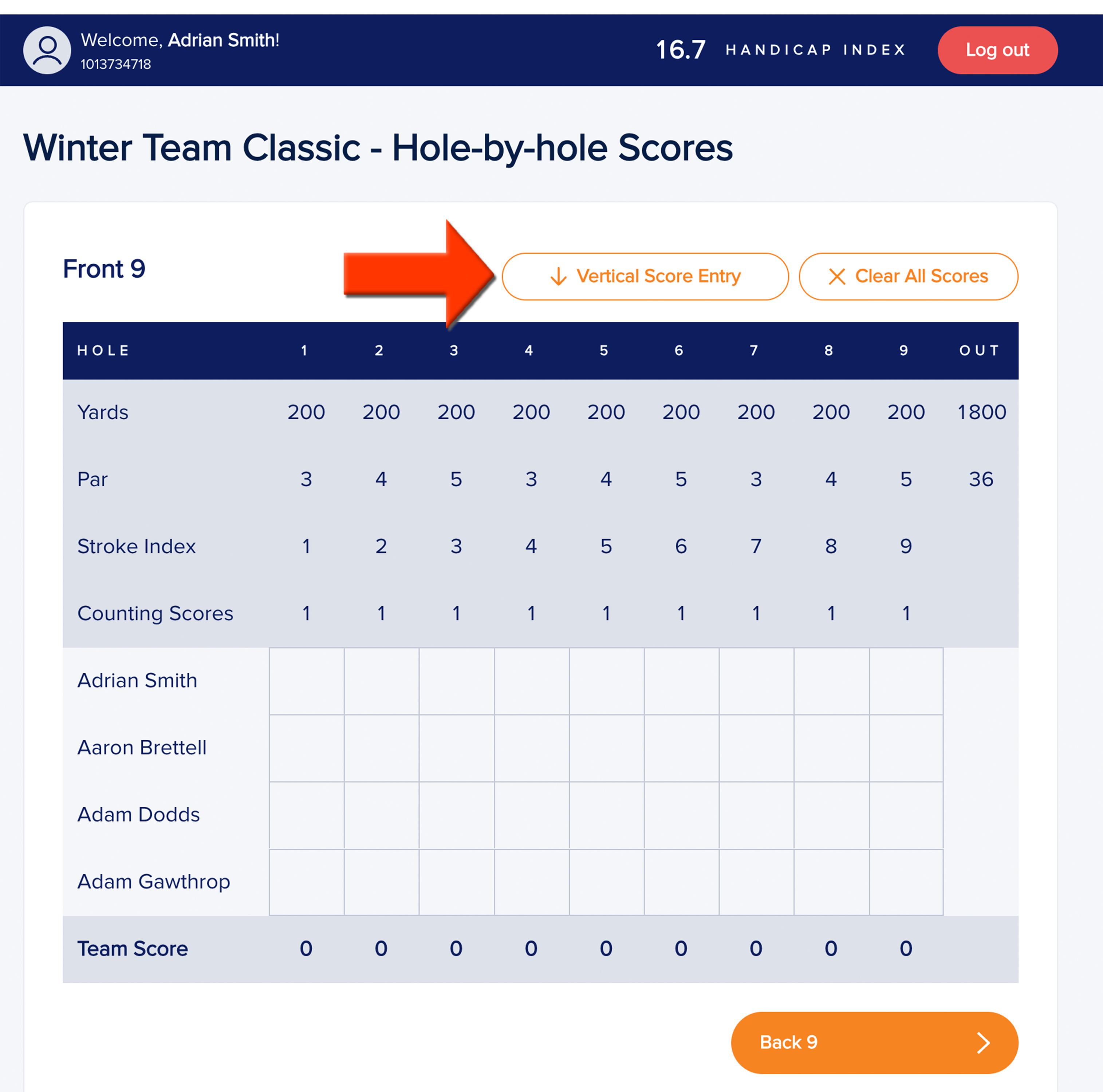
After a round is completed, players may return to the terminal, log in, and enter scores for their individual or team event and general play rounds. Once logged in, players will be given the option to post their scores, which will take them to an information page displaying the details of their check-in (i.e., Course holes, tee, tee time, attester, handicap). Once ready, they can click on the enter hole-by-hole scores. Players will have to enter scores for nine holes at a time. For example, if they check in for 18 holes, they will enter scores for the first 9 holes, then click "Back 9" and enter scores for the last 9 holes (as shown below).
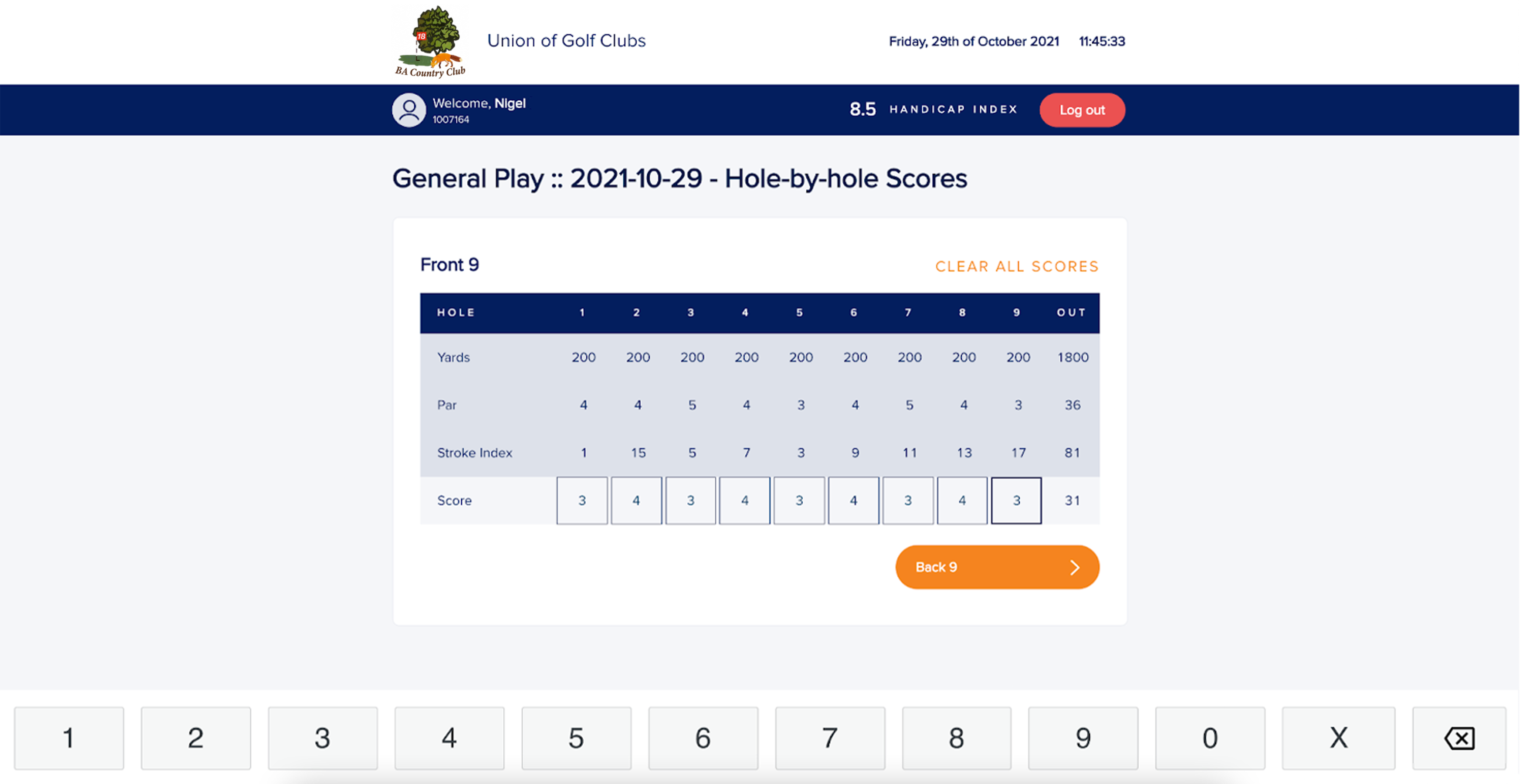
For team events, players will also have the option to enter score vertically (i.e., one hole at a time) or horizontally (i.e., one player at a time) (as shown below).
After the scores have been entered, the player will click "Review Round," which redirects them to the Review Screen. The review screen will display their check-in information plus their gross score. If the score is correct, the player will then post it by clicking the "Post Score" button.