
This feature is available for the following products:

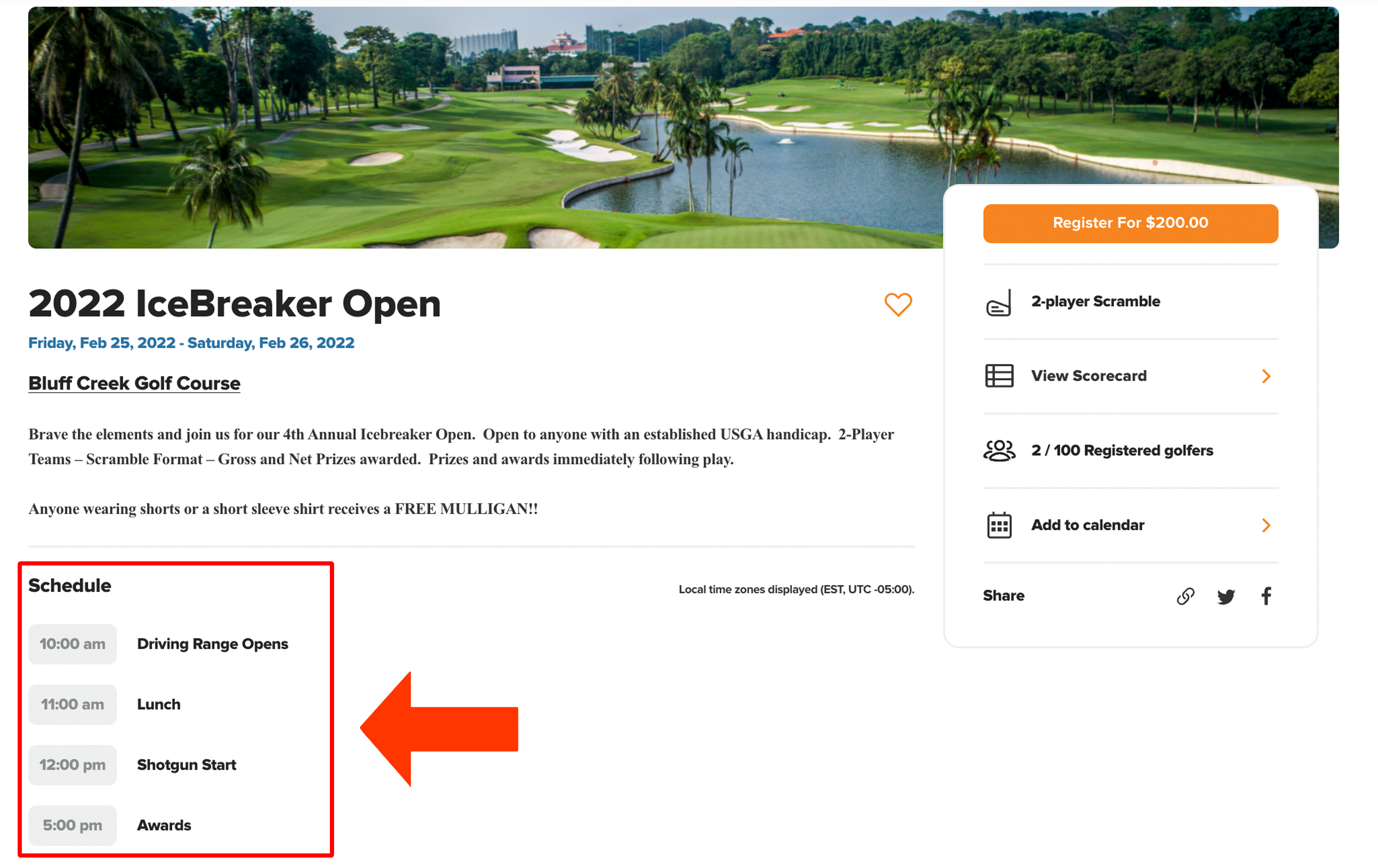
Schedule templates in Golf Genius TM allow you to create a timeline of events that can show up on your Event, League, and Clinic Golf Hub Pages (as shown below).
Creating Schedules
To create a new schedule template for your events, leagues, or clinics, follow these directions:
From the Customer Center, navigate to Directories & Registration > My Golf Hub > Schedules.
Click "New Schedule Template," and you will be presented with the schedule template creator page.
Define the following:
Name: Provide the name used for the template. For example, if this schedule is for a standard afternoon shotgun, give it a name like "Standard Afternoon Shotgun."
Default: This option marks the schedule as the default. It will be the default schedule for all new event and league Golf Hub Pages when checked as the default.
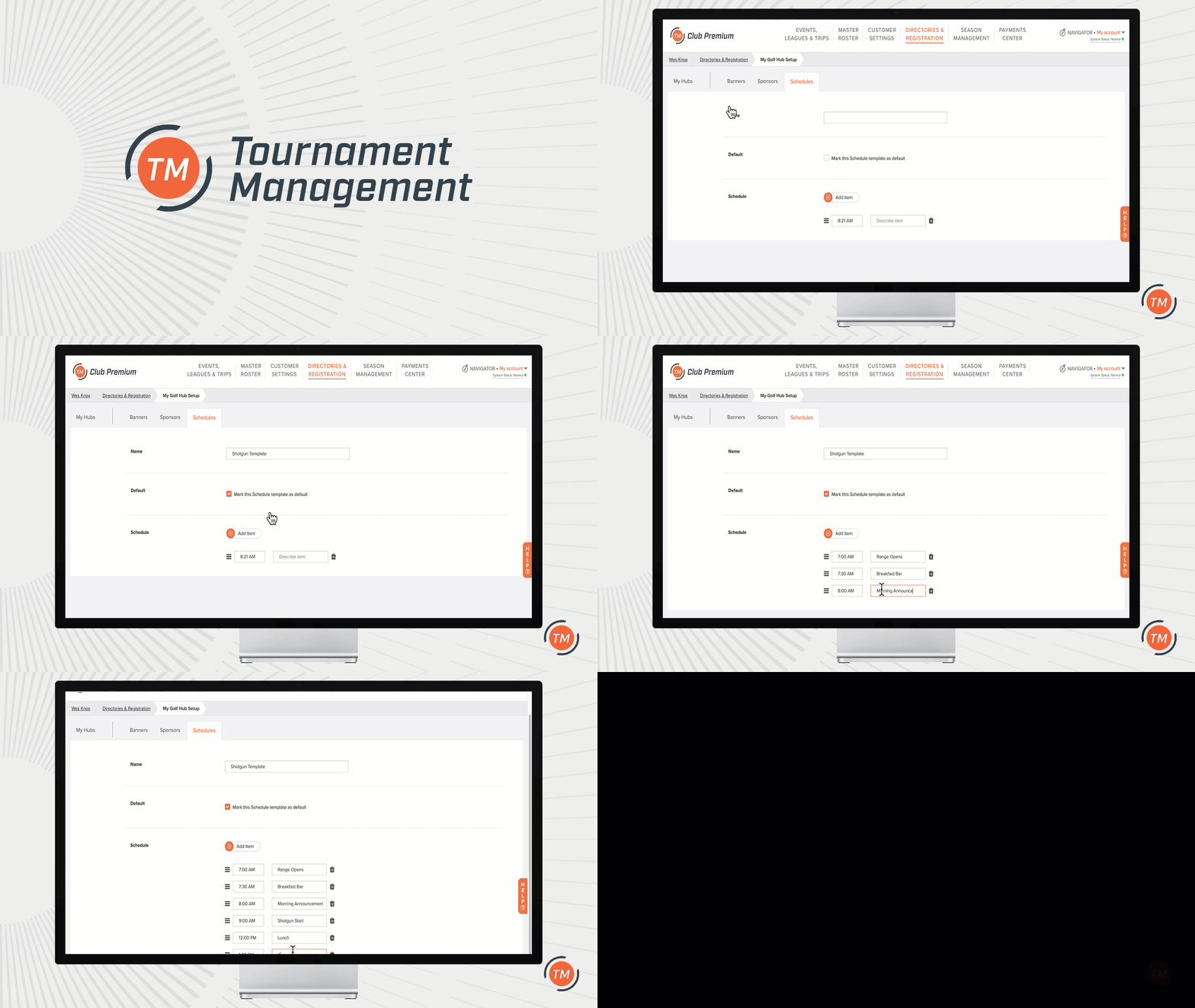
Set the time for the first item and give it a description (as shown below).

Click "Add Item" (if needed).
Set the time and give the new item a description.
Repeat steps 5–6 to add multiple items.
Sort the items (if necessary).
To complete the schedule template creation process, click "Save."
Below you will see the process of creating a schedule template.
Updating Schedule Templates
Two actions can be taken for schedule templates:
Edit: This allows you to update the template's name, check it as the default schedule template, add new schedule items, or remove schedule items. Note: All updates to the schedule template will propagate to all published pages and hubs that use the template.
Delete: This allows you to delete the template. Note: Any used templates cannot be deleted.